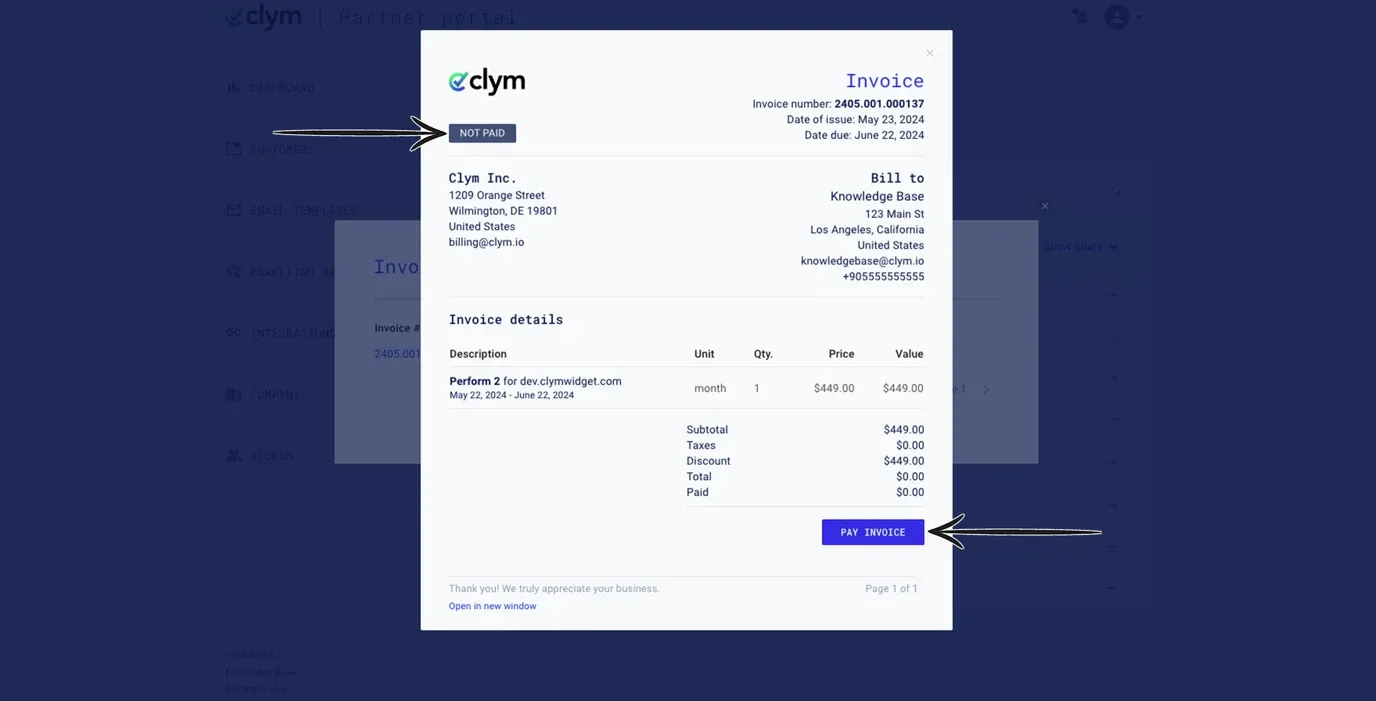
How to pay an invoice on a customer's domain
Throughout your partnership with Clym, you may encounter customers who are requesting a copy of a previously issued invoice. Clym stores all previous invoices within the Partner Portal for easy access to view, pay, or interact with.
Viewing an invoice is an easy 3-step process:
- Sign in to the Partner Portal
- Access Customers
- View invoice(s)
1. Sign in to the Partner Portal
You should have received a magic link in your initial onboarding email. Please click Sign in from the email to get started. Alternatively, navigate to the Partner Portal to sign in.
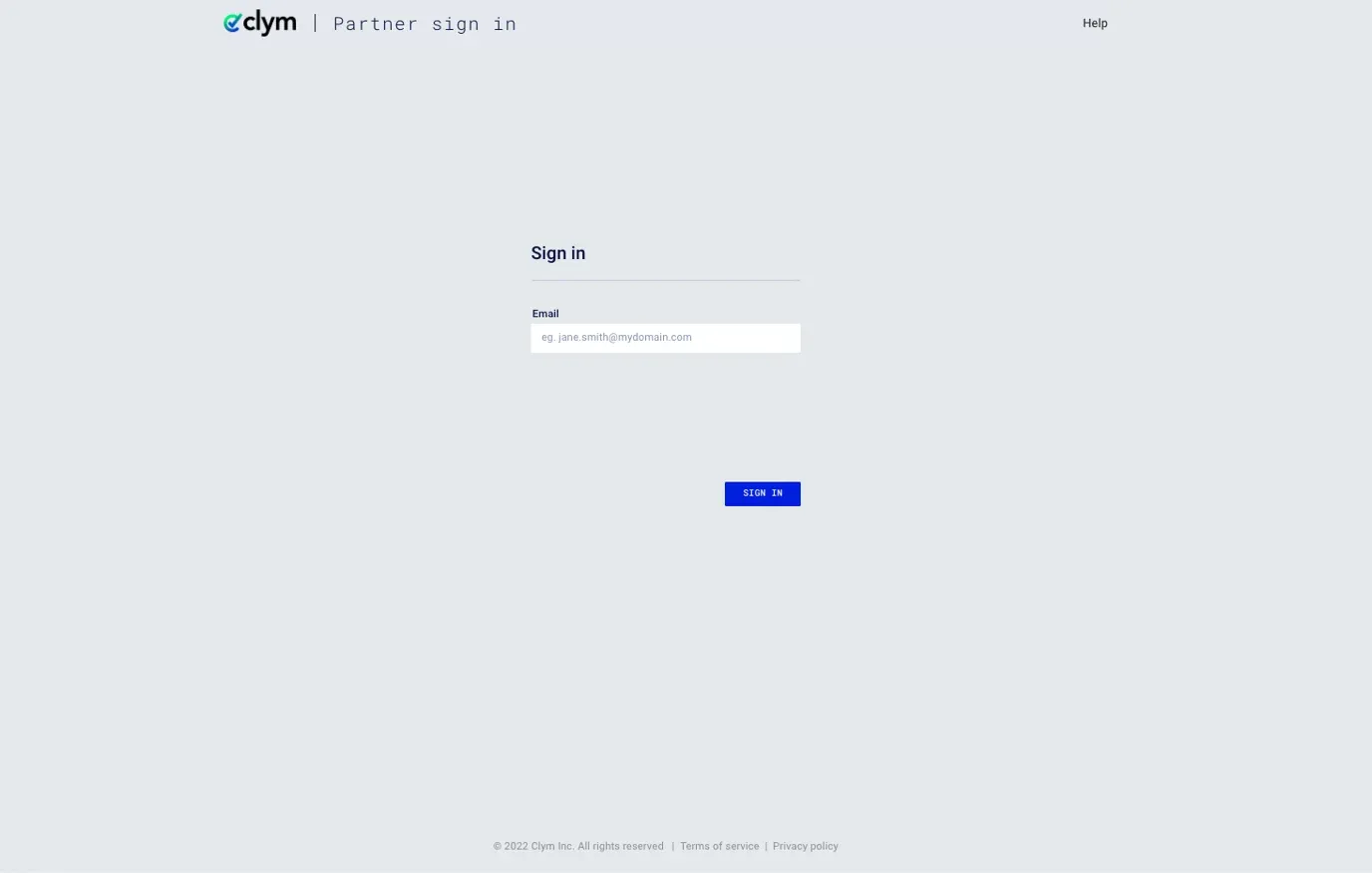
2. Access Customers
From the left-hand menu, select Customers. In the overview of your customers, search for the domain you would like to access the invoice(s) for.
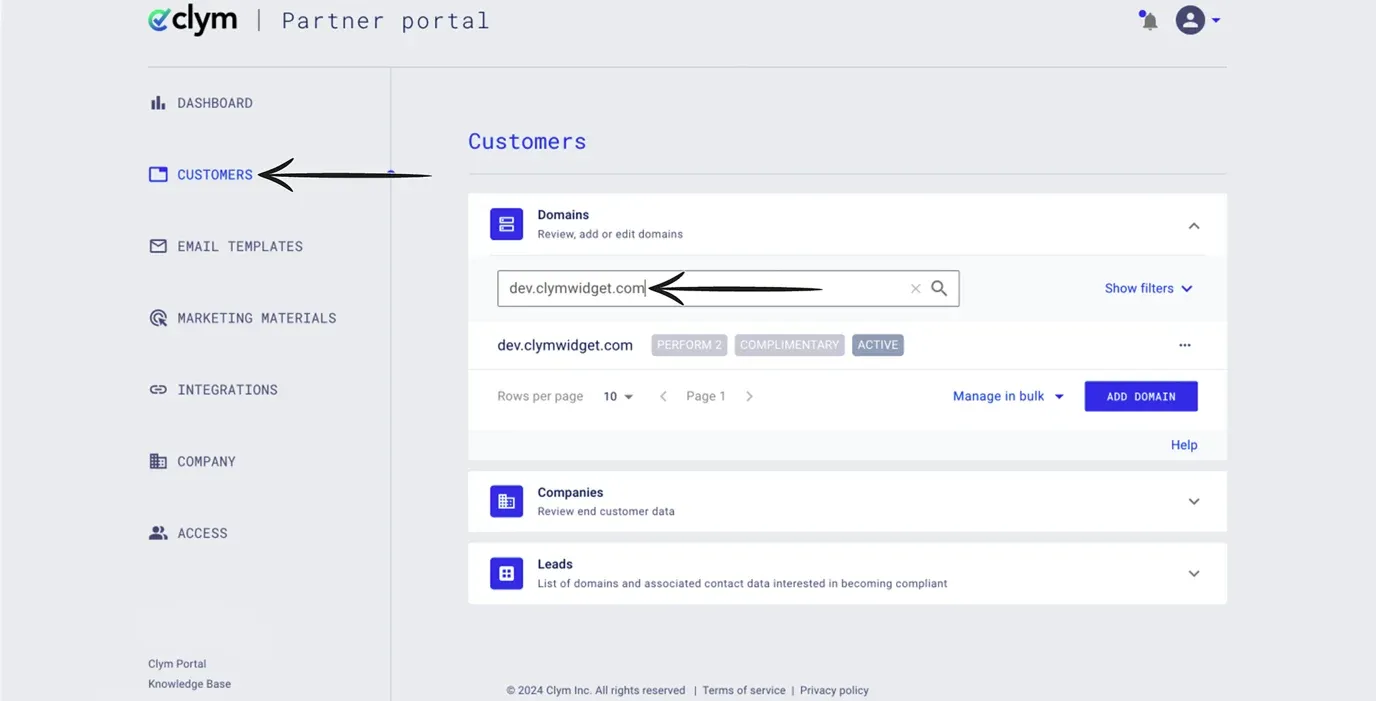
3. Pay invoice
Click the View invoices button next to the domain.
In the pop-up window, you can view and download the invoice details, including the domain, package information, total amount due, and total paid.
If an invoice has not been paid, you can click Pay invoice to pay the invoice. Click Open in new window to download the invoice.
You can opt for a full payment or a partial payment.
Please note that all invoices over $2,500 will not see the button to pay invoice.
If you encounter any challenges, please reach out to us at support@clym.io.