How to view your invoices in the Partner Portal
We know that being able to access invoices through the Partner Portal is essential for our partners to effectively manage their accounts and ensure seamless collaboration with us. In this article, we will provide a step-by-step guide to help you easily locate your invoices within the Partner Portal, empowering you with the information you need to stay informed and efficiently manage your partnership with us.
Viewing your invoices is an easy 3-step process:
- Sign in to the Partner Portal
- Access Invoices
- View invoice(s)
1. Sign in to the Partner Portal
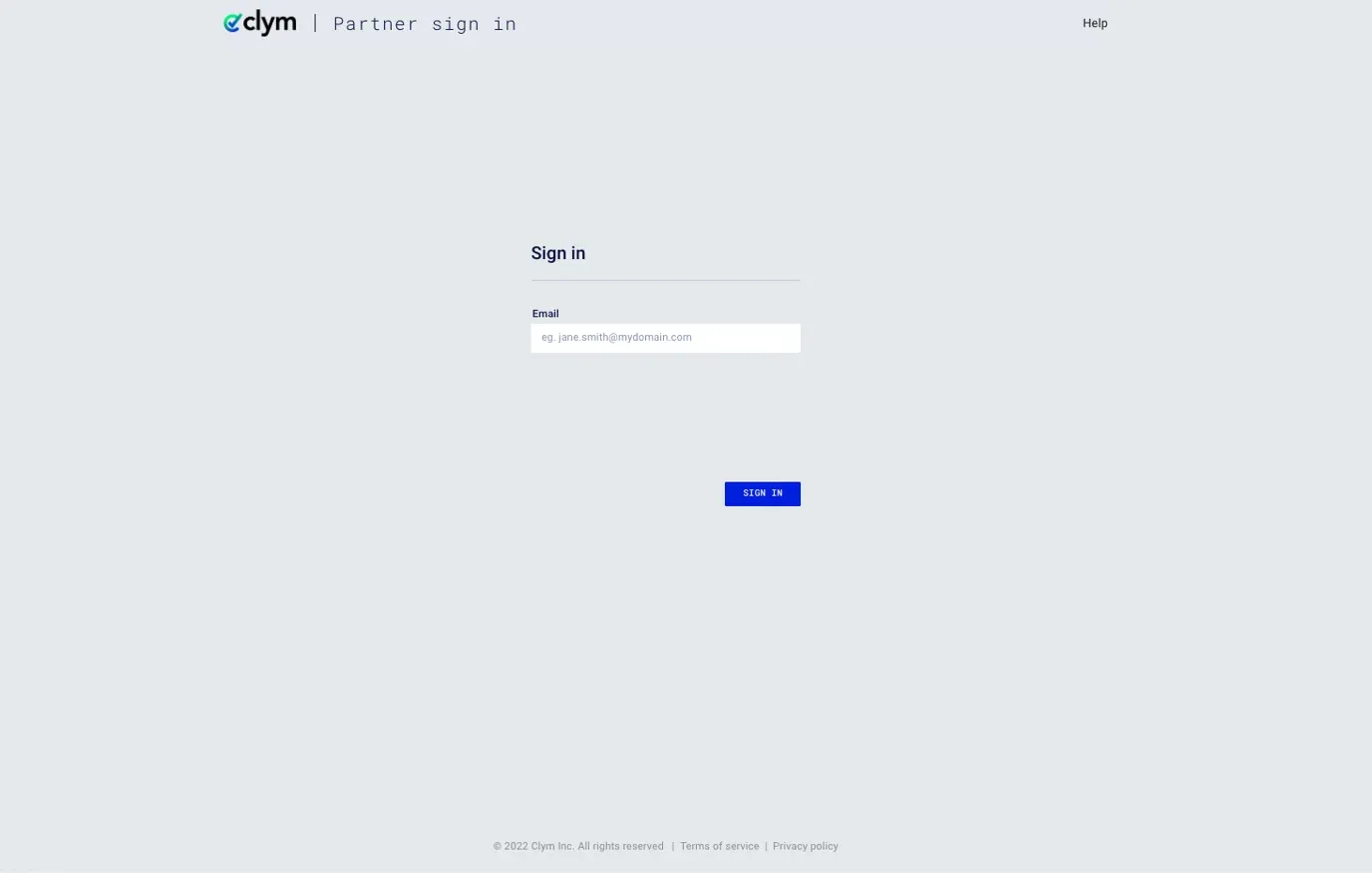
You should have received a magic link in your initial onboarding email. Please click Sign in from the email to get started. Alternatively, navigate to the Partner Portal to sign in.
2. Access Invoices
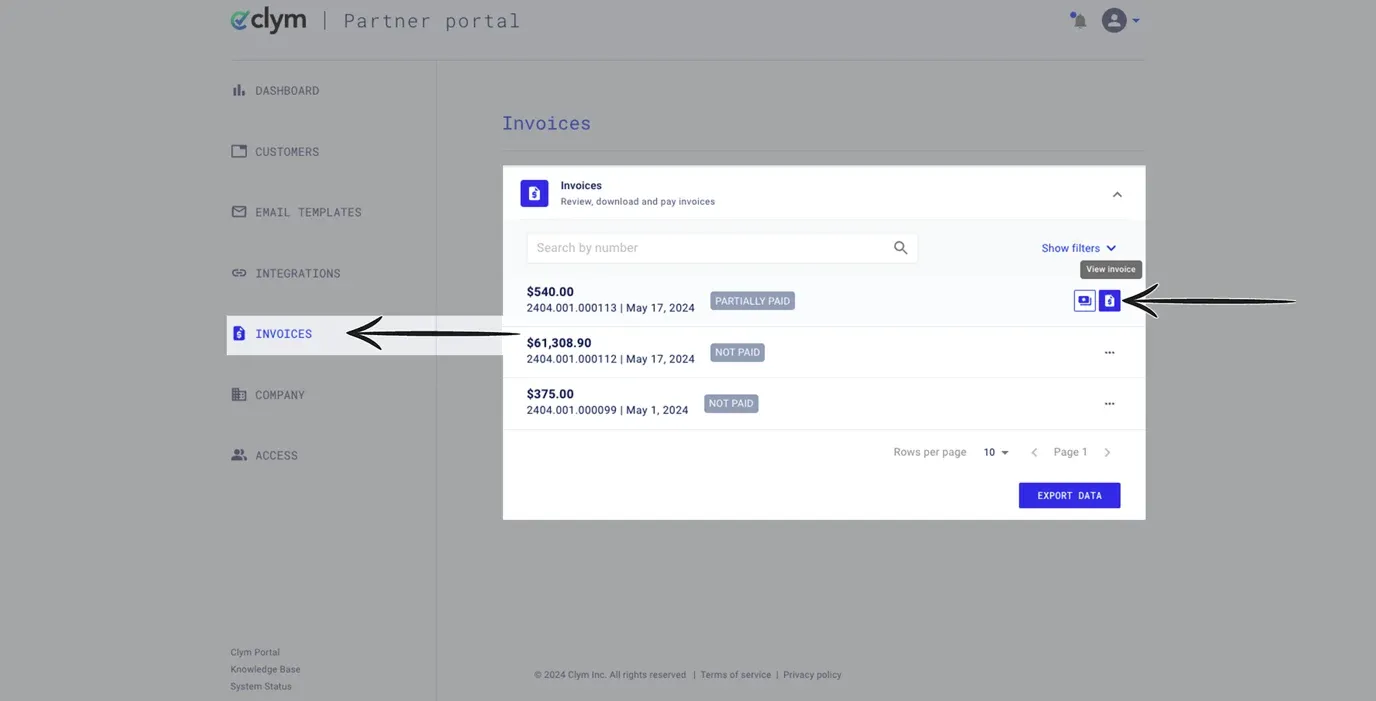
From the left-hand menu, select Invoices. In the overview of your invoices, search for the invoice you would like to review. Click View invoice.
3. View invoice(s)
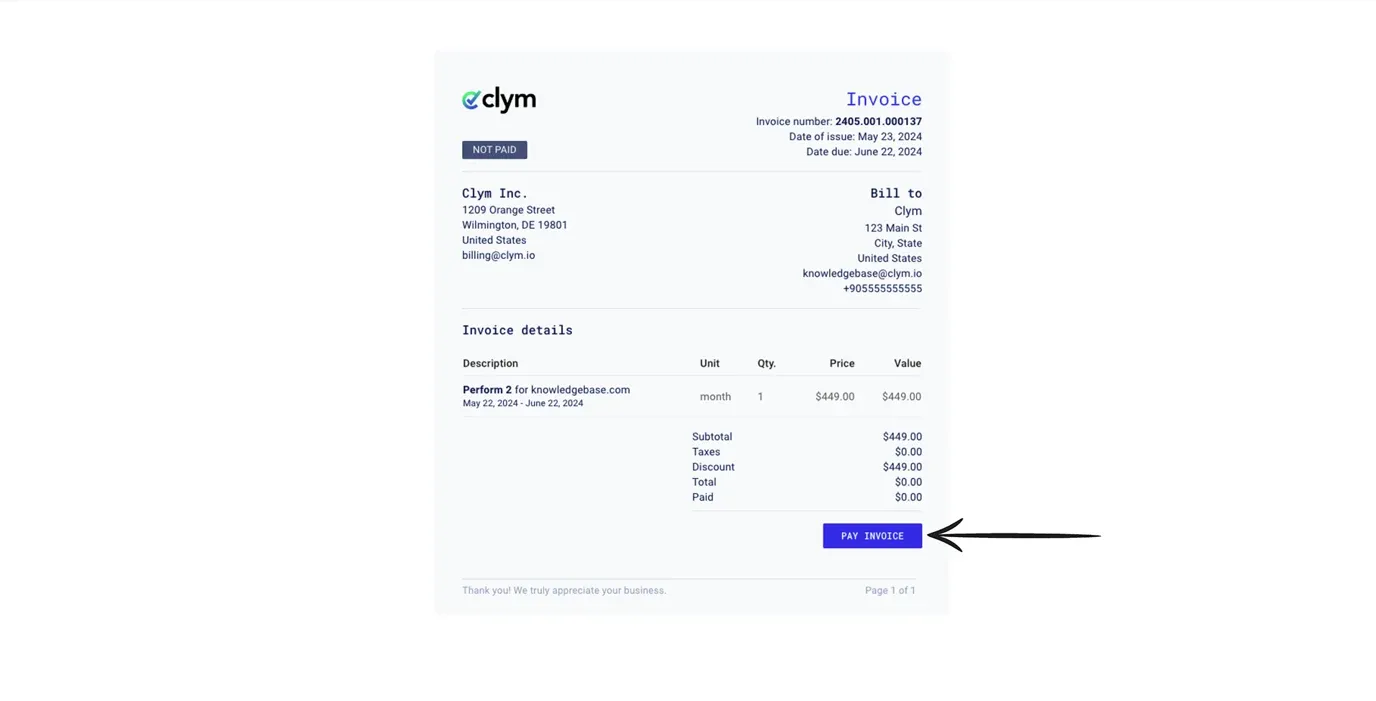
Your invoice will open in a new tab. To apply payment, click Pay invoice.
In the pop-up window, enter the Card number, Expiration, CVC, Country, and Zip code. Click Pay to process your payment for the stated amount.
If you encounter any challenges, please reach out to us at support@clym.io.