How to add a lead
When a customer uses the scanner tool on your website, Clym automatically captures them as a lead and collects their information in your Partner Portal account. Once a customer has been added as a lead in your Partner Portal account, you will be able to view their lead information, download a report, or share a report, further enabling you to continue the compliance discussion with each customer and convert more leads. If you are having a discussion with a customer and would like to manually add them to your list of leads in your Partner Portal account, Clym gives you the ability to do so.
Adding a lead is an easy 3-step process:
- Sign in to the Partner Portal
- Access Customers
- Add new lead
For more information on how to use the scanner, please click here.
1. Sign in to the Partner Portal
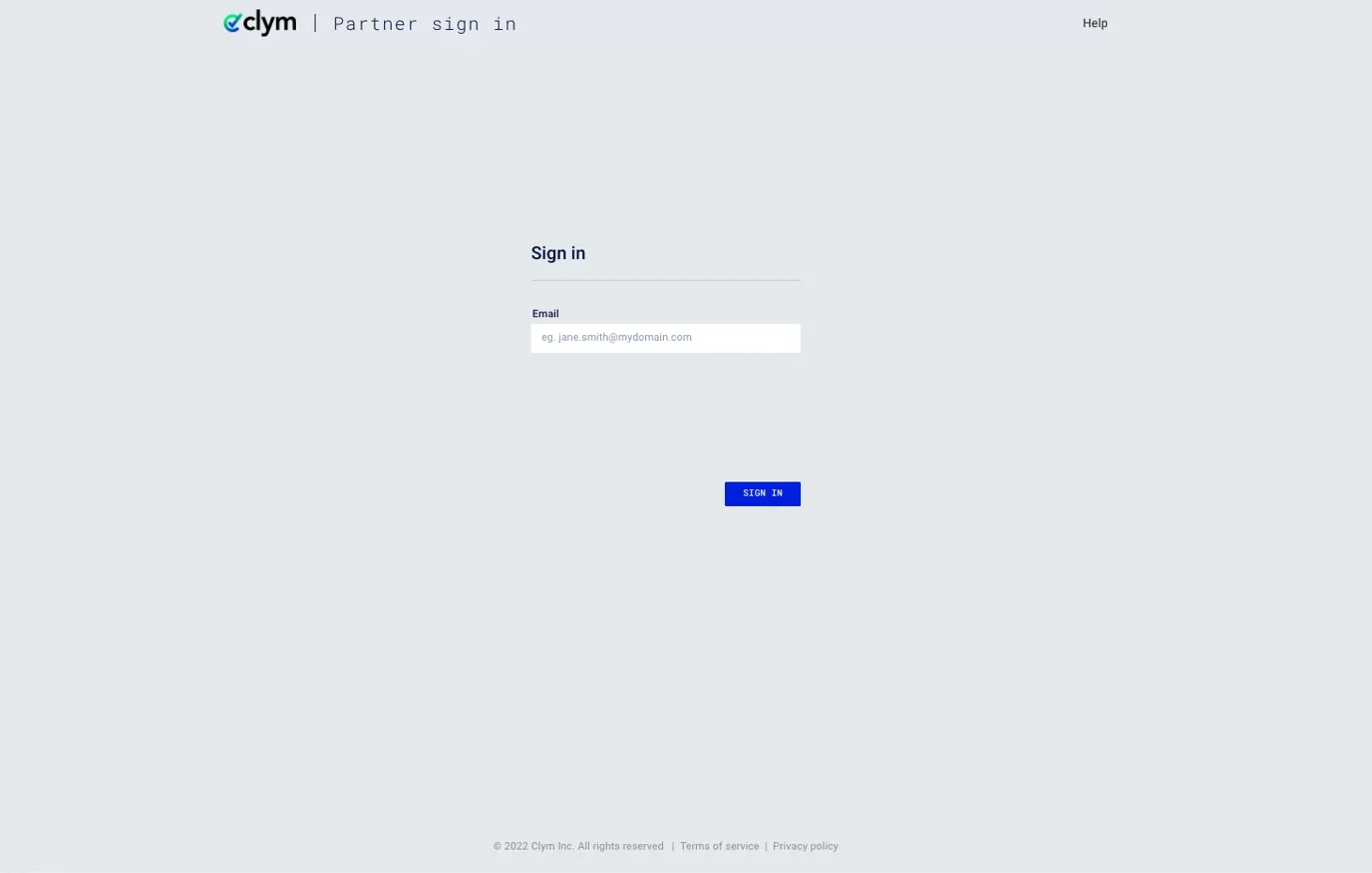
You should have received a magic link in your initial onboarding email. Please click Sign in from the email to get started. Alternatively, navigate to the Partner Portal to sign in.
2. Access Customers
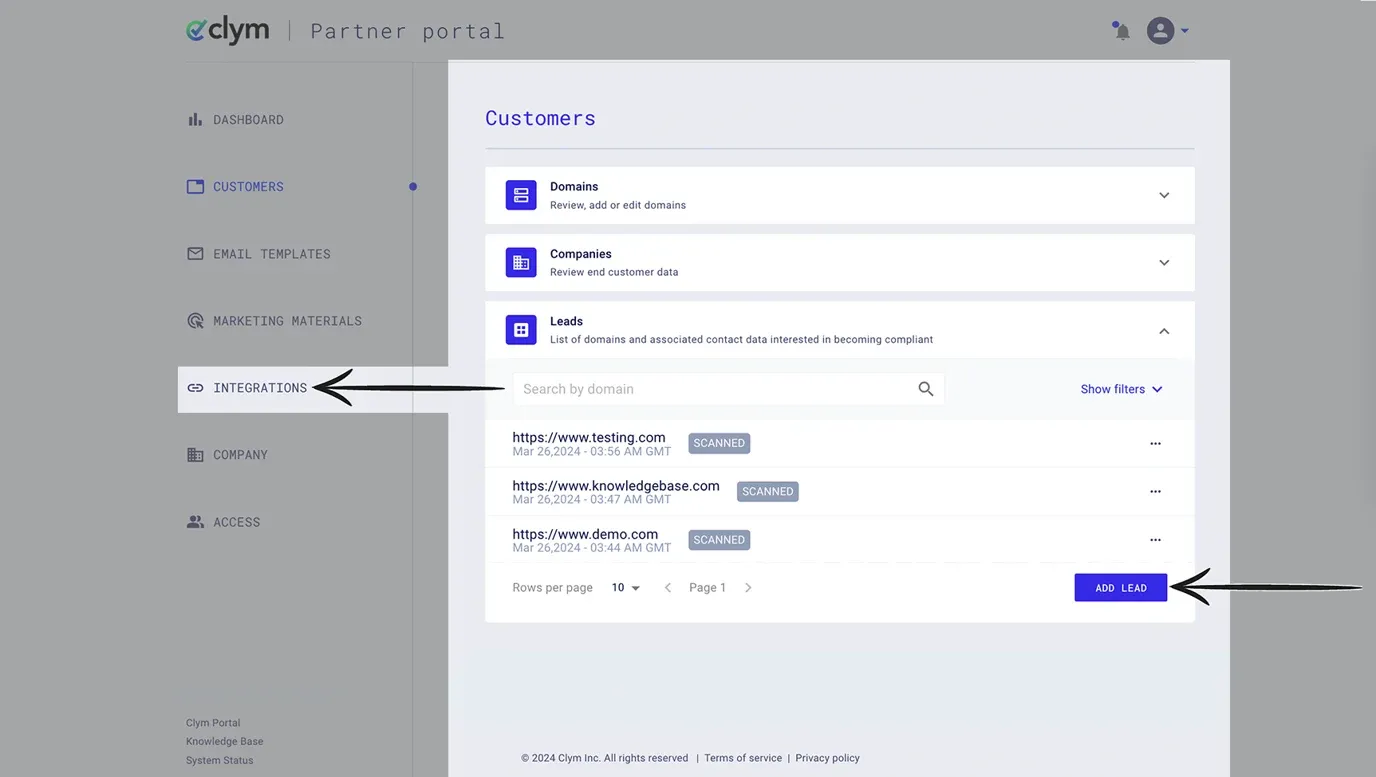
From the left-hand menu, select Customers. Click to expand the Leads section. Click Add Lead.
3. Add new lead
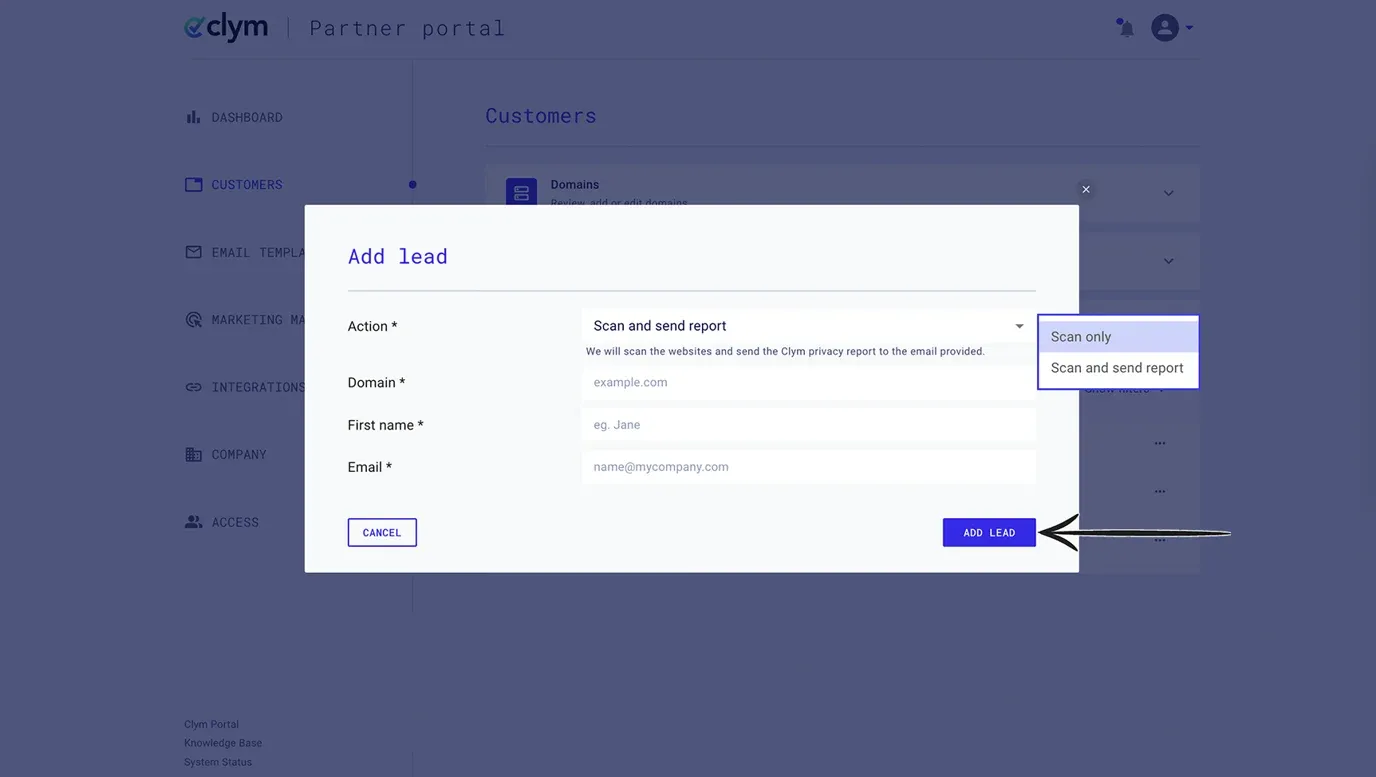
From the Leads section, click Add Lead. In the pop-up window, select the Action and choose either Scan only or Scan and send report. Add the Domain that you would like to add as a lead. If you select the action Scan and send report, enter the First name and Email of the recipient who will receive the scan report. Click Add Lead.
If you encounter any challenges, please reach out to us at support@clym.io.