How to delete a merchant
If you have any merchants who have requested to opt out of Clym's solutions, it is easy to remove their merchant ID from your Partner Portal account so that this ID can no longer be claimed on your registration page.
Deleting a merchant ID from your Partner Portal account is an easy 3-step process:
- Sign in to the Partner Portal
- Navigate to your merchants
- Delete merchant ID
1. Sign in to the Partner Portal
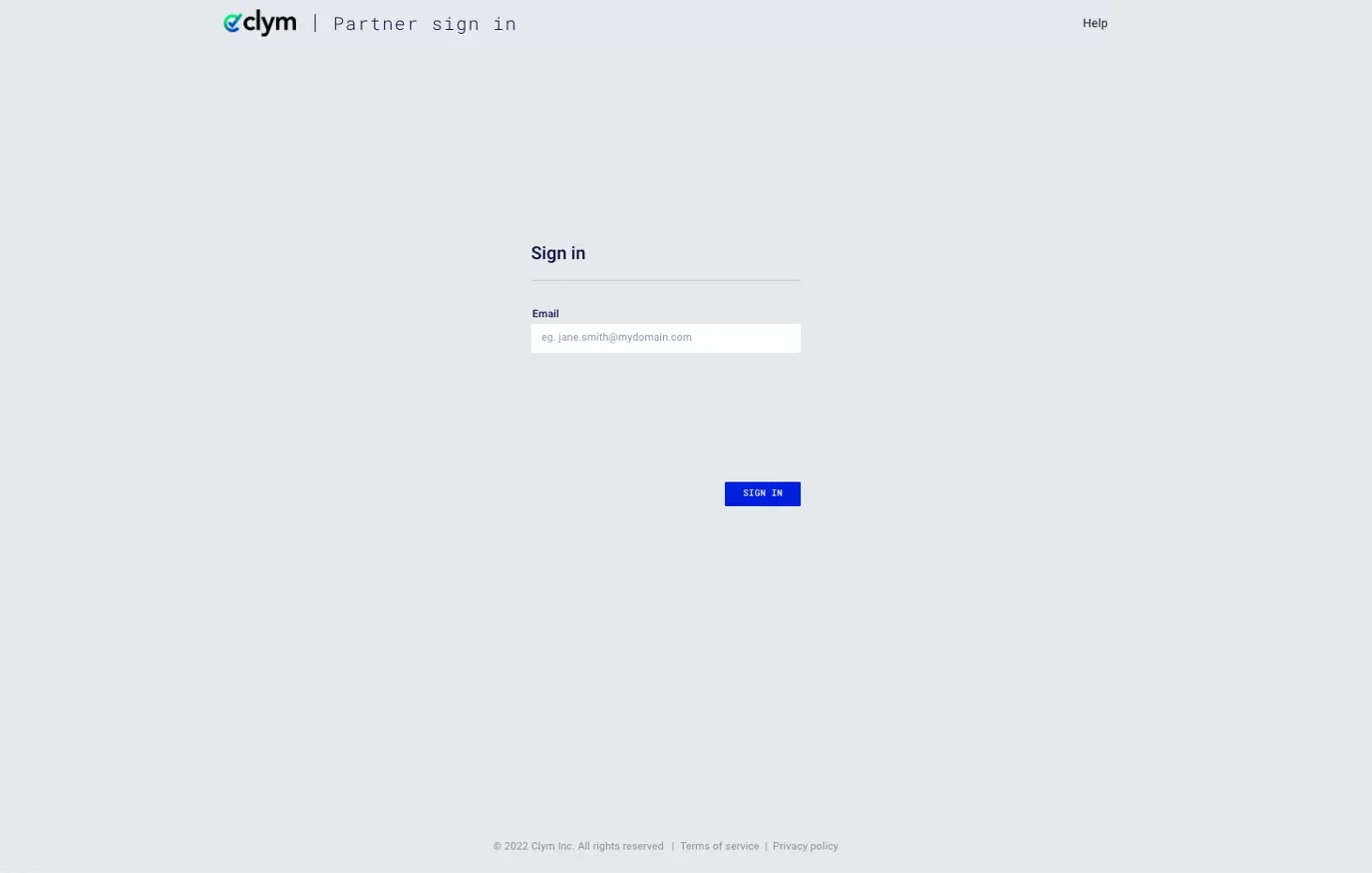
You should have received a magic link in your initial onboarding email. Please click Sign in from the email to get started. Alternatively, navigate to the Partner Portal to sign in.
2. Navigate to your merchants
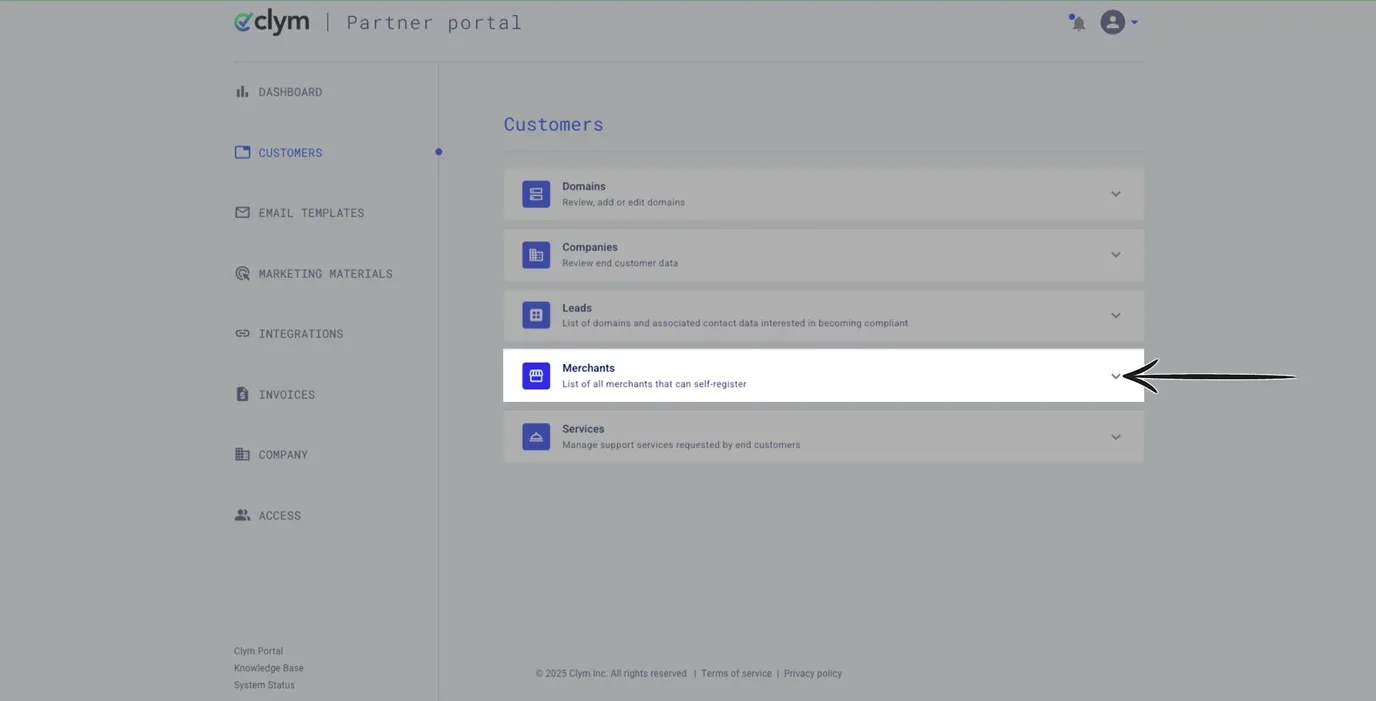
From the left-hand menu, select Customers. Click the drop-down next to Merchants to expand the section.
3. Delete merchant ID
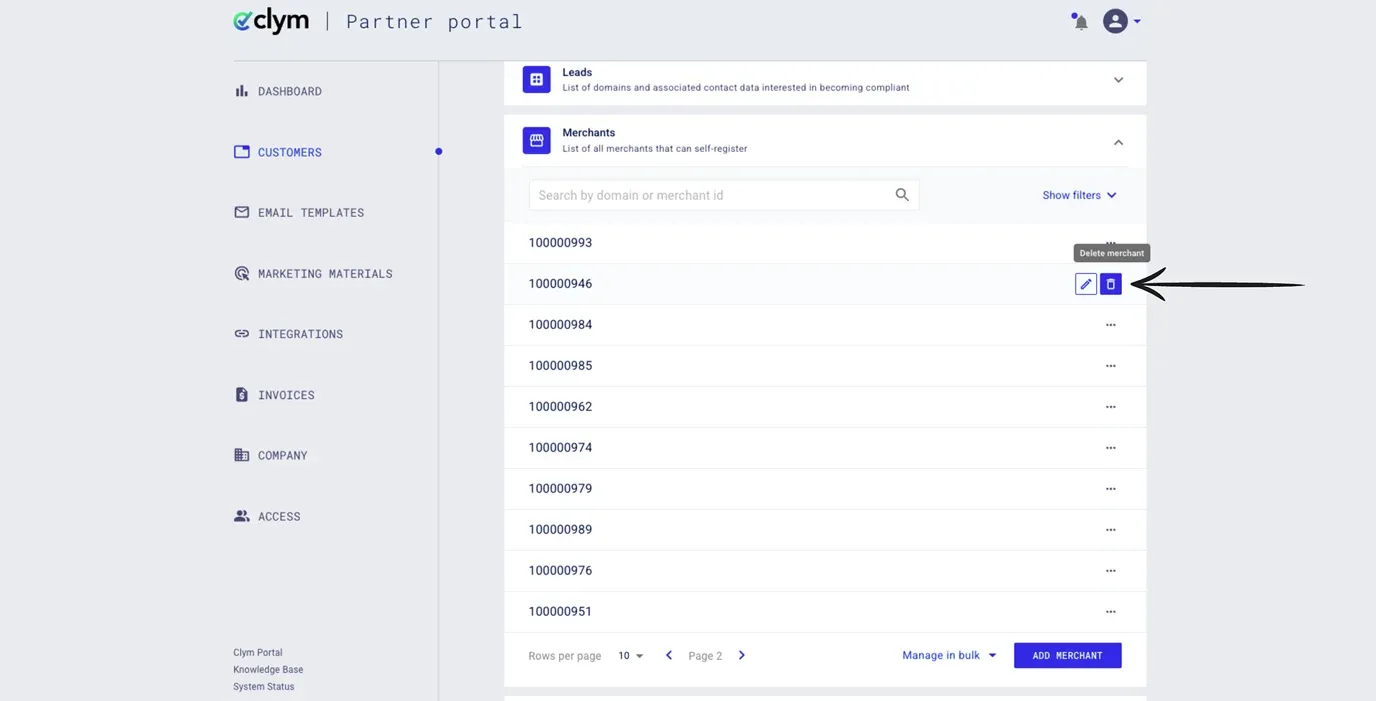
Search for the merchant ID that you would like to delete from your Partner Portal account. Hover over the three dots next to this merchant ID and click Delete merchant.
In the pop-up window, click Delete to confirm your decision.
If you encounter any challenges, please reach out to support@clym.io.