How to import merchant IDs
Our Partner Portal offers several methods for adding merchants to your account. If you have opted to use a self-registration page for your merchants to opt into Clym's services, you will be able to import a list of merchant IDs into your account for merchant ID (or MID) verification.
Importing MIDs into your Partner Portal account is an easy 3-step process:
- Sign in to the Partner Portal
- Manage MIDs in bulk
- Provide data to Clym
1. Sign in to the Partner Portal
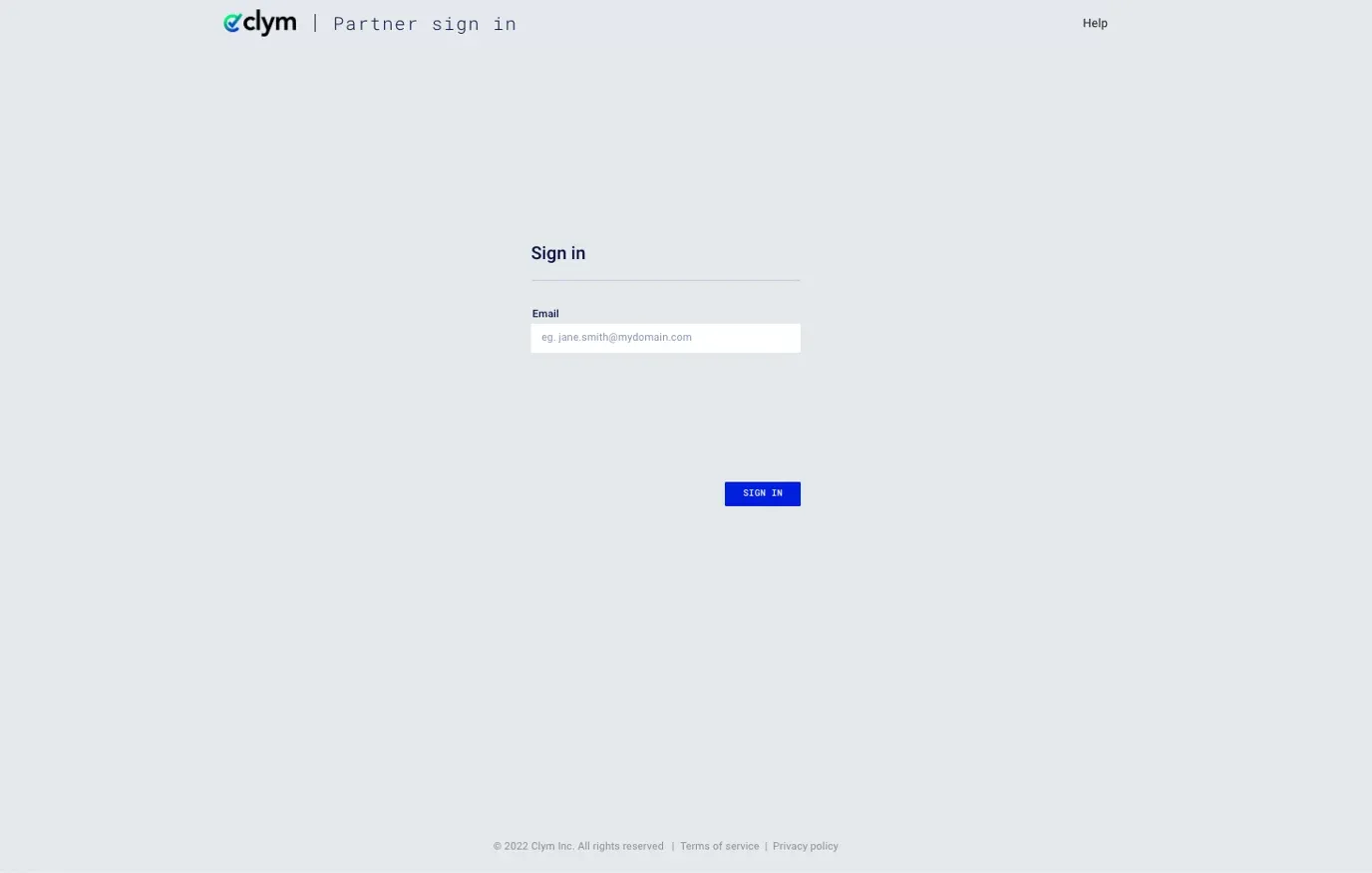
You should have received a magic link in your initial onboarding email. Please click Sign in from the email to get started. Alternatively, navigate to the Partner Portal to sign in.
2. Manage MIDs in bulk
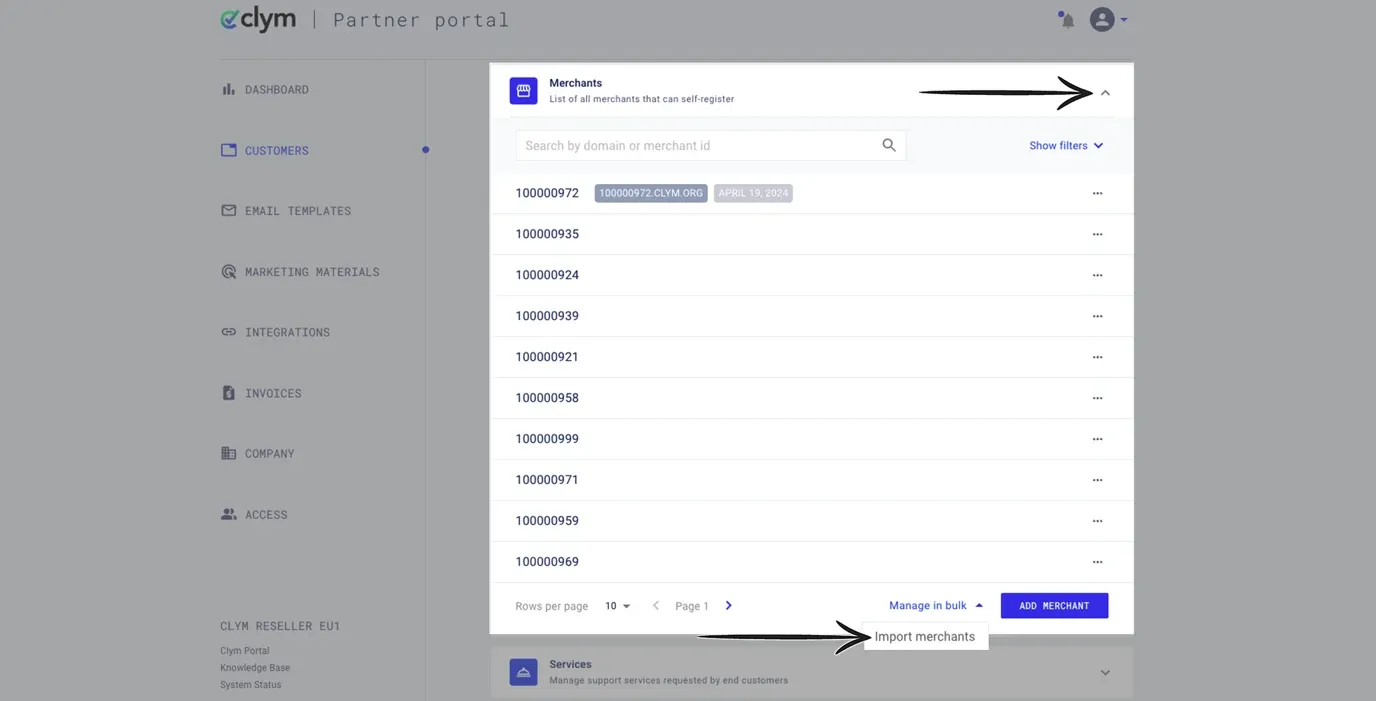
From the left-hand menu, select Customers. Click the drop-down next to Merchants to expand the section. At the bottom of the section, click Manage in bulk, and then from the drop-down, select Import merchants.
3. Provide data to Clym
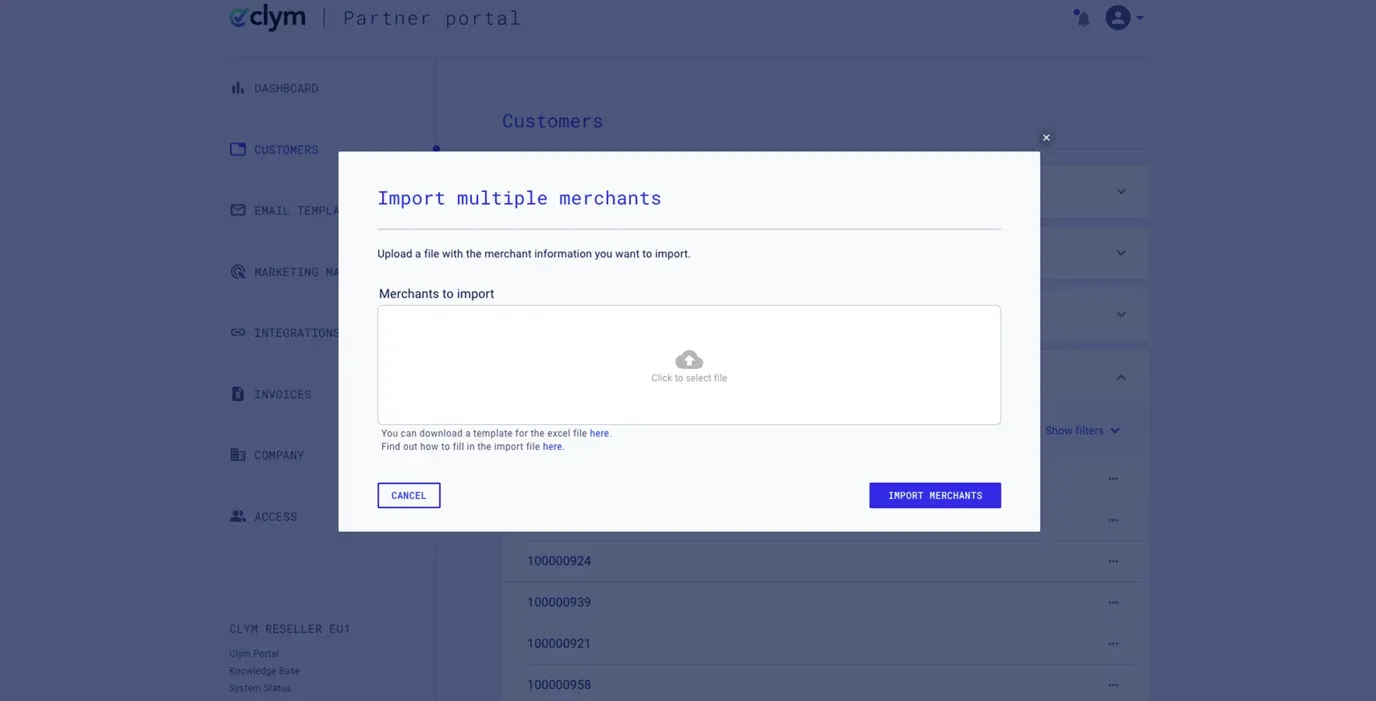
First, you can download the import template from the pop-up window. Add your merchant data to the template, including Merchant ID, Company Name, and Notes. After attaching your saved Excel file to the Merchants to import window, click Import Merchants.
Merchants will now be able to register using your custom landing page and registration widget.
Please note: When importing your file, please use .xlsx file formatting.
If you encounter any challenges, please reach out to us at support@clym.io.