How to disable two-factor authentication
While two-factor authentication can provide additional security for your user profile, you may wish to reduce the time it takes to access your Partner Portal account and focus on supporting your customers. Clym makes it easy to control this setting within your security preferences at any time.
Disabling two-factor authentication is an easy 3-step process:
- Sign in to the Partner Portal
- Access your security settings
- Disable two-factor authentication
1. Sign in to the Partner Portal
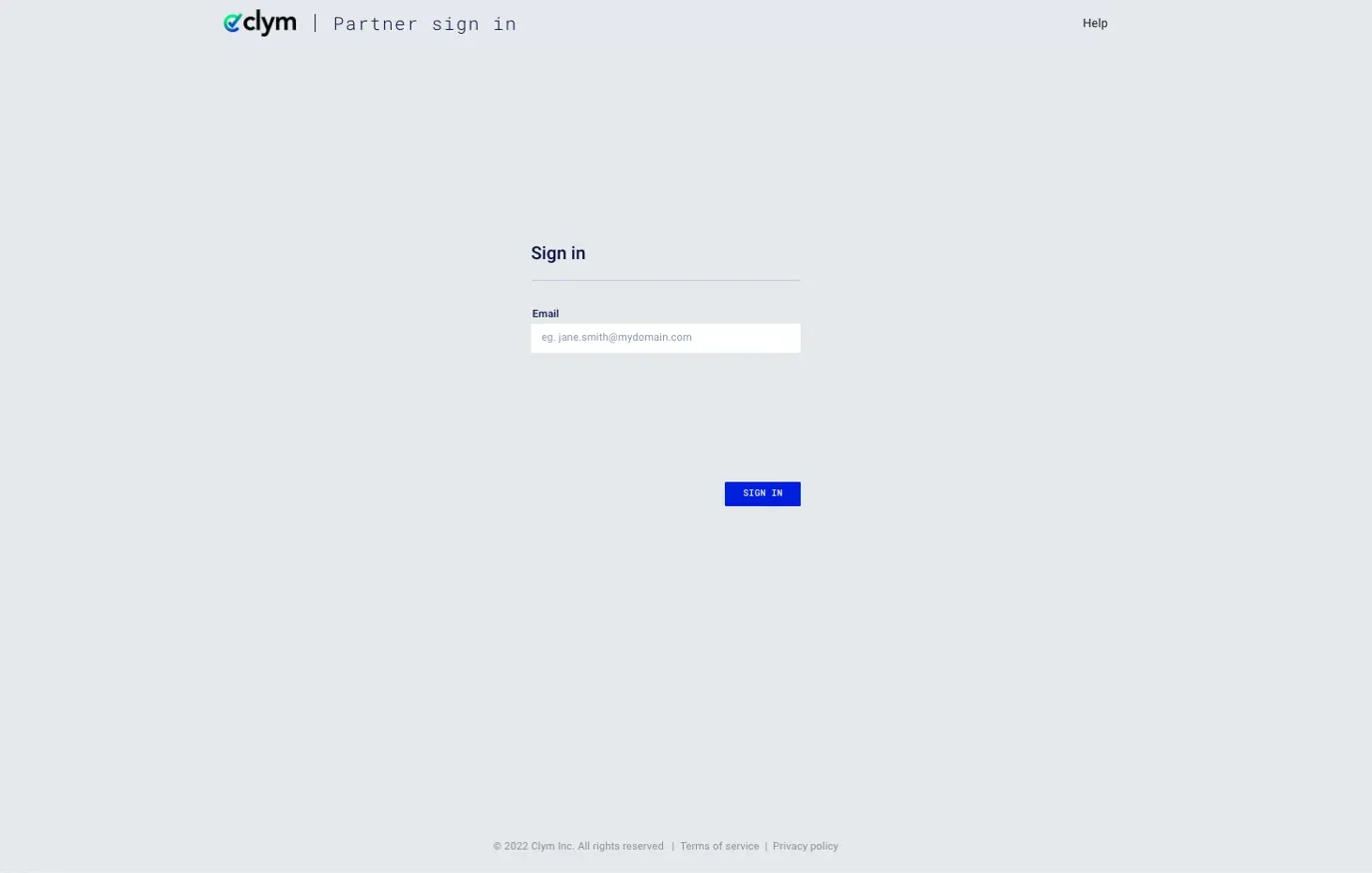
You should have received a magic link in your initial onboarding email. Please click Sign in from the email to get started. Alternatively, navigate to the Partner Portal to sign in.
2. Access your security settings
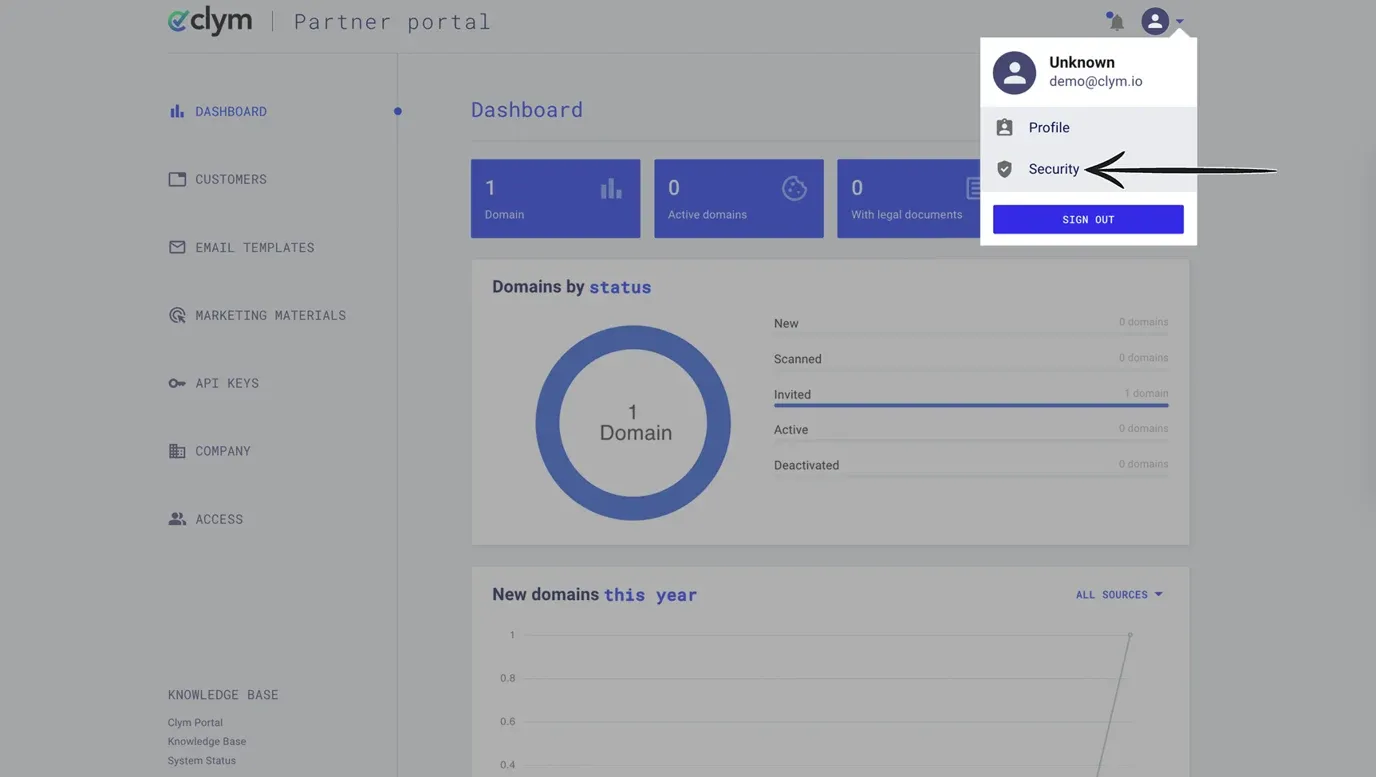
In the top right-hand corner, click the drop-down arrow next to the person icon to open your account settings. From the options, select Security.
3. Disable two-factor authentication
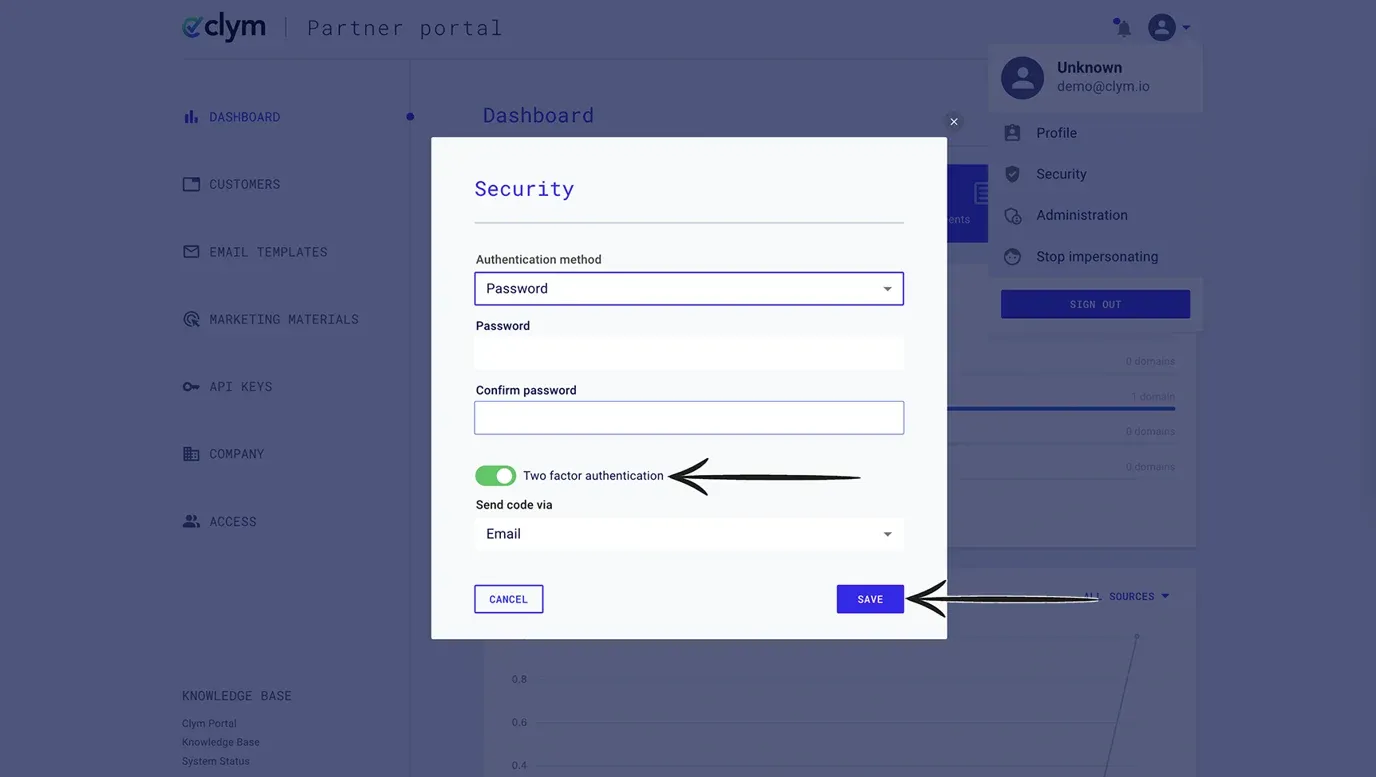
From the pop-up window, toggle off the option for two-factor authentication to Disable the setting for your account. Click Save.
If you encounter any challenges, please reach out to us at support@clym.io.