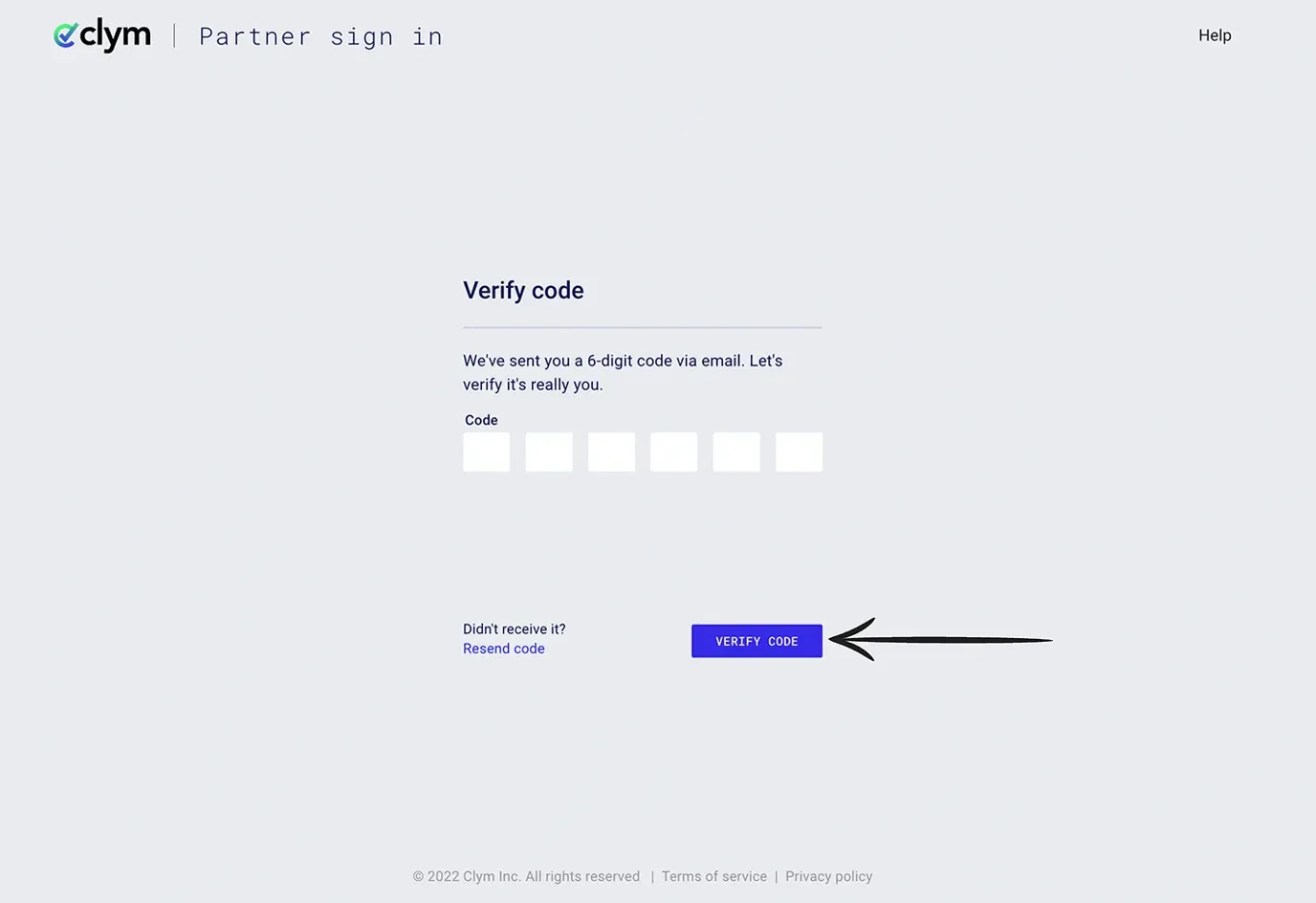
How to sign in using two-factor authentication
While there may be an extra, seemingly annoying, step in your sign-in process when two-factor authentication is enabled, it helps to protect your Partner Portal account by requesting identity verification with each sign-in attempt. Within your account, you can choose to have your verification codes sent via email or time-based OTP. After selecting your preferred option, Clym will send a 6-digit verification code. Two-factor authentication can be used with any of our sign-in methods.
Signing into your account with two-factor authentication enabled is an easy 3-step process:
- Sign in to the Partner Portal
- Access code from email or time-based OTP
- Confirm your identity using the 6-digit code
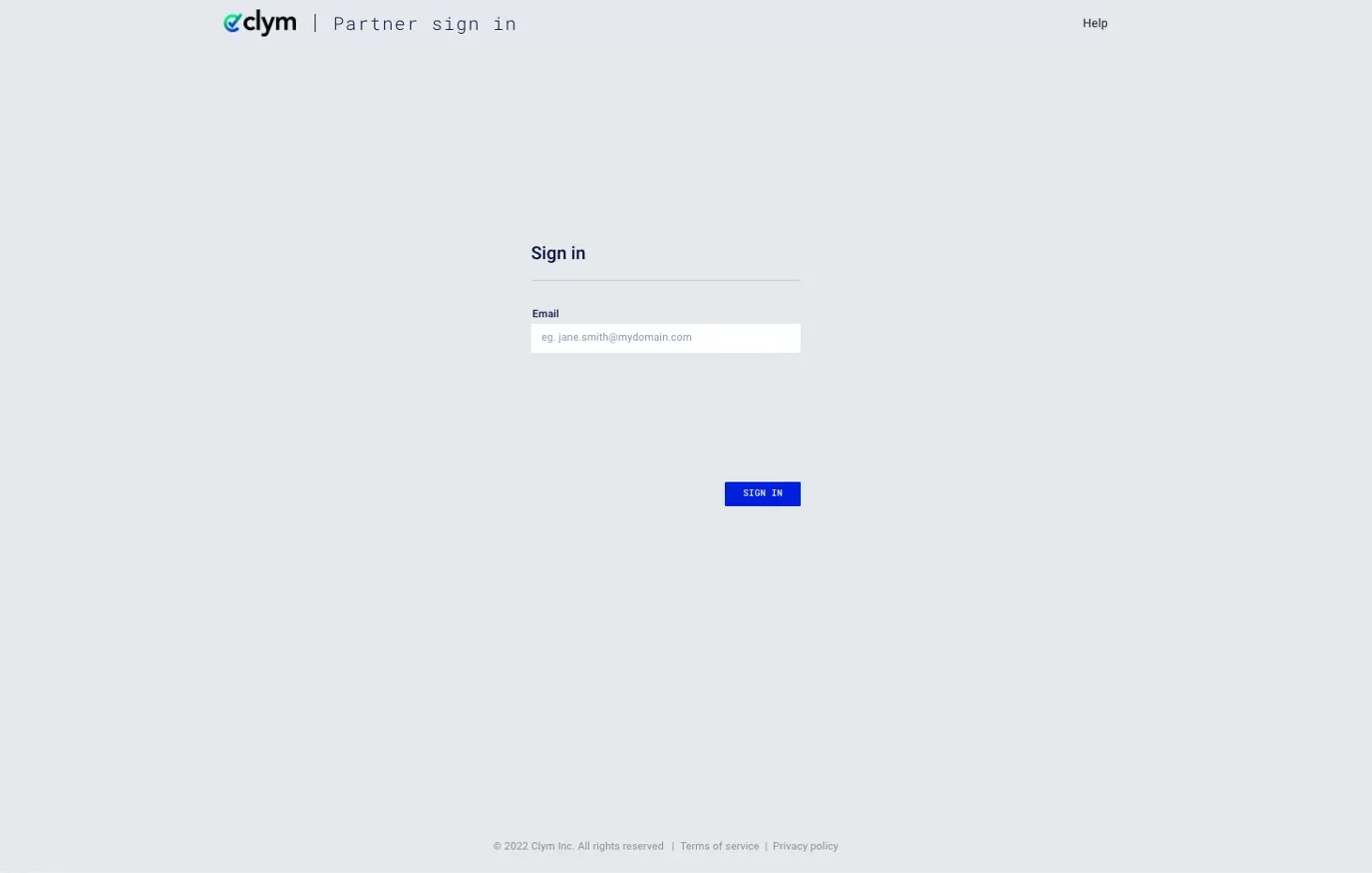
1. Sign in to the Partner Portal
You should have received a magic link in your initial onboarding email. Please click Sign in from the email to get started. Alternatively, navigate to the Partner Portal to sign in.
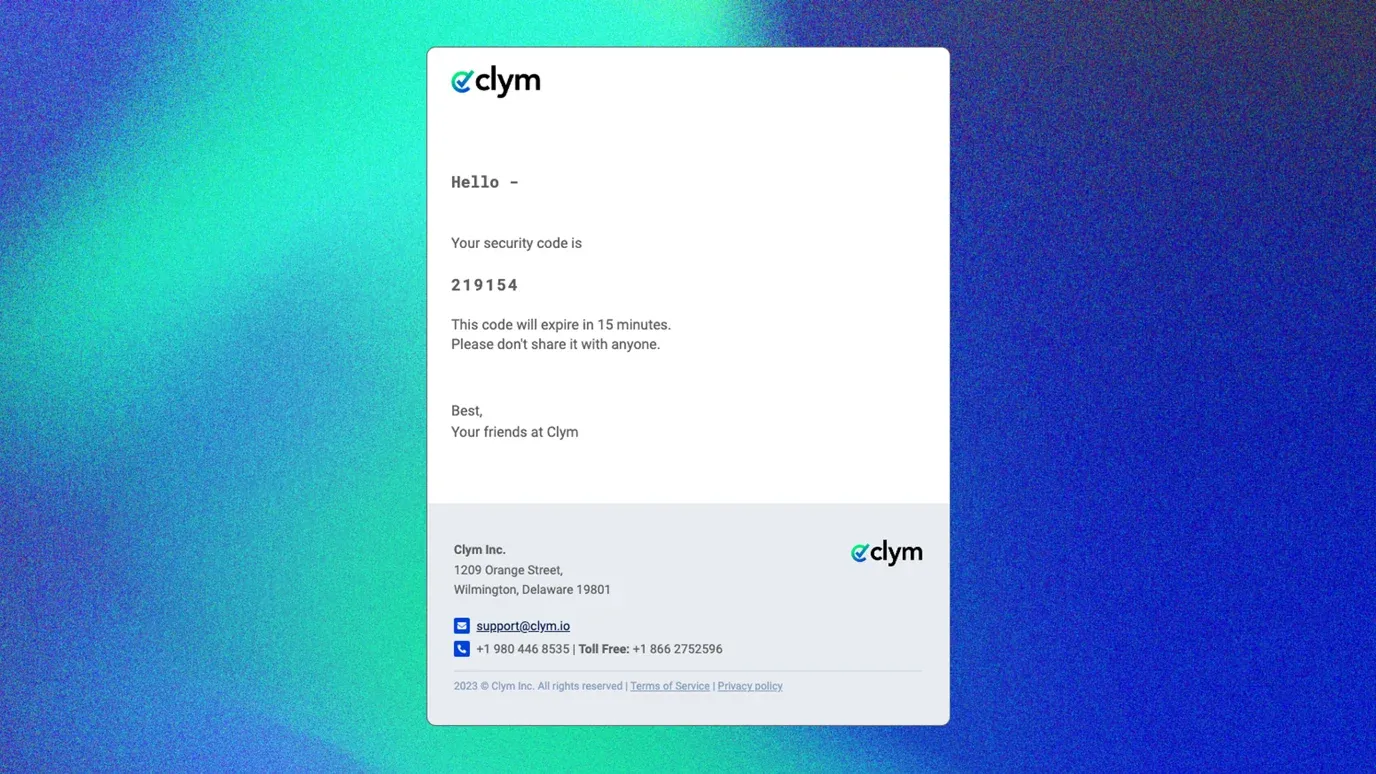
2. Access code from email or time-based OTP
Depending on the security setting preferences set within your account, Clym will send you an email containing your 6-digit security code, or you can access your 6-digit code within your authentication app.
3. Sign in using two-factor authentication
Navigate back to the Partner Portal sign-in page to enter the 6-digit code you have received via email or your authentication app. Please enter the code to confirm your identity and click Verify Code.
If you do not receive the confirmation code in a few seconds, you can always request a new one by clicking Resend code.
If you encounter any challenges, please reach out to us at support@clym.io.