How to change the role of a user
In the Partner Portal, three different role types can be assigned to your users, each with varying permissions. You can modify your users' roles at any time.
Roles give different types of access to the users:
- Administrator - full access
- Developer - does not have access to the Company and Access tabs
- Account Manager - only has access to add domains 1 by 1, search, filter, invite, deactivate domains, and to the domain info
Changing a user's role is an easy 3-step process:
- Sign in to the Partner Portal
- Go to the Access tab
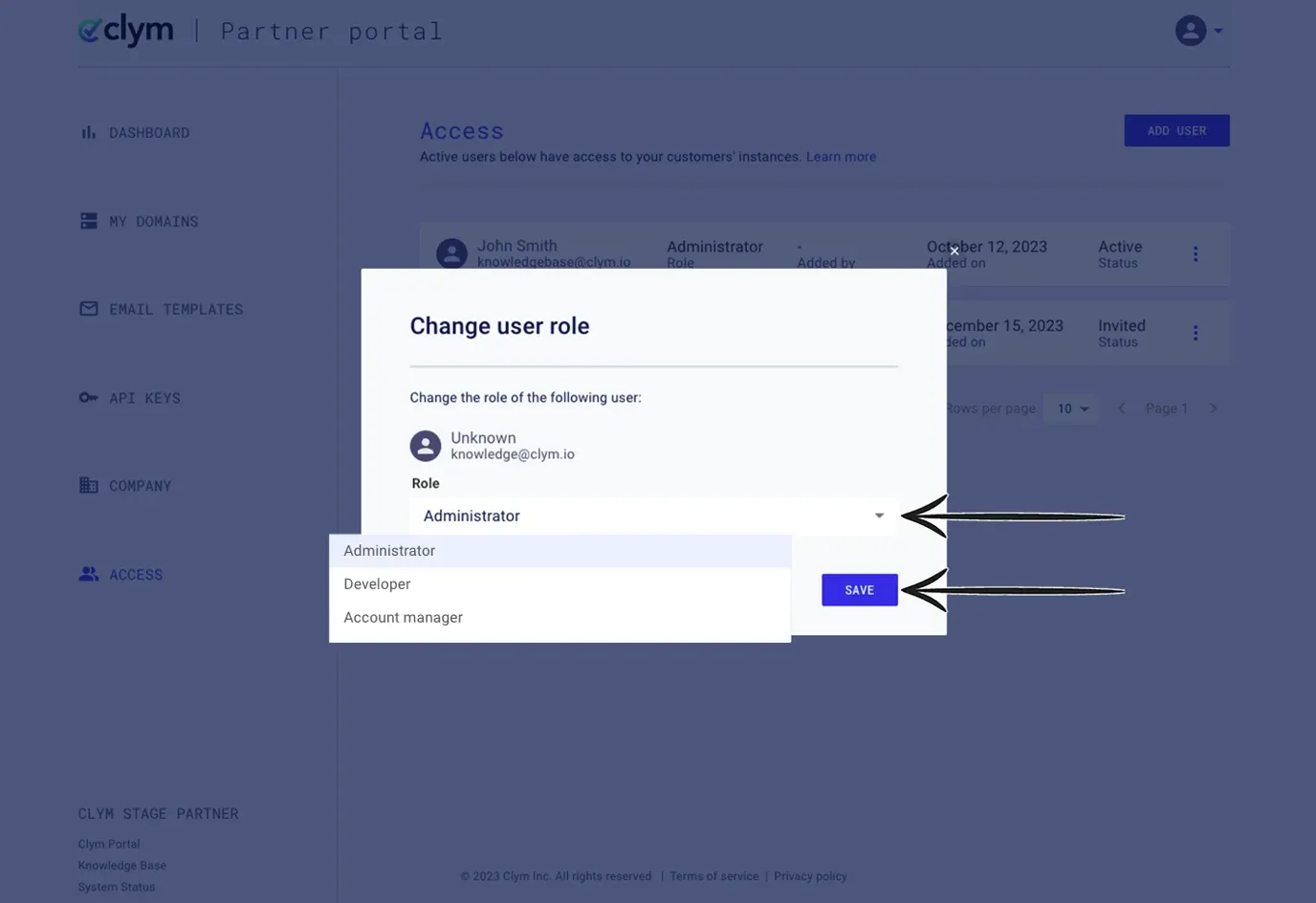
- Change the user's role
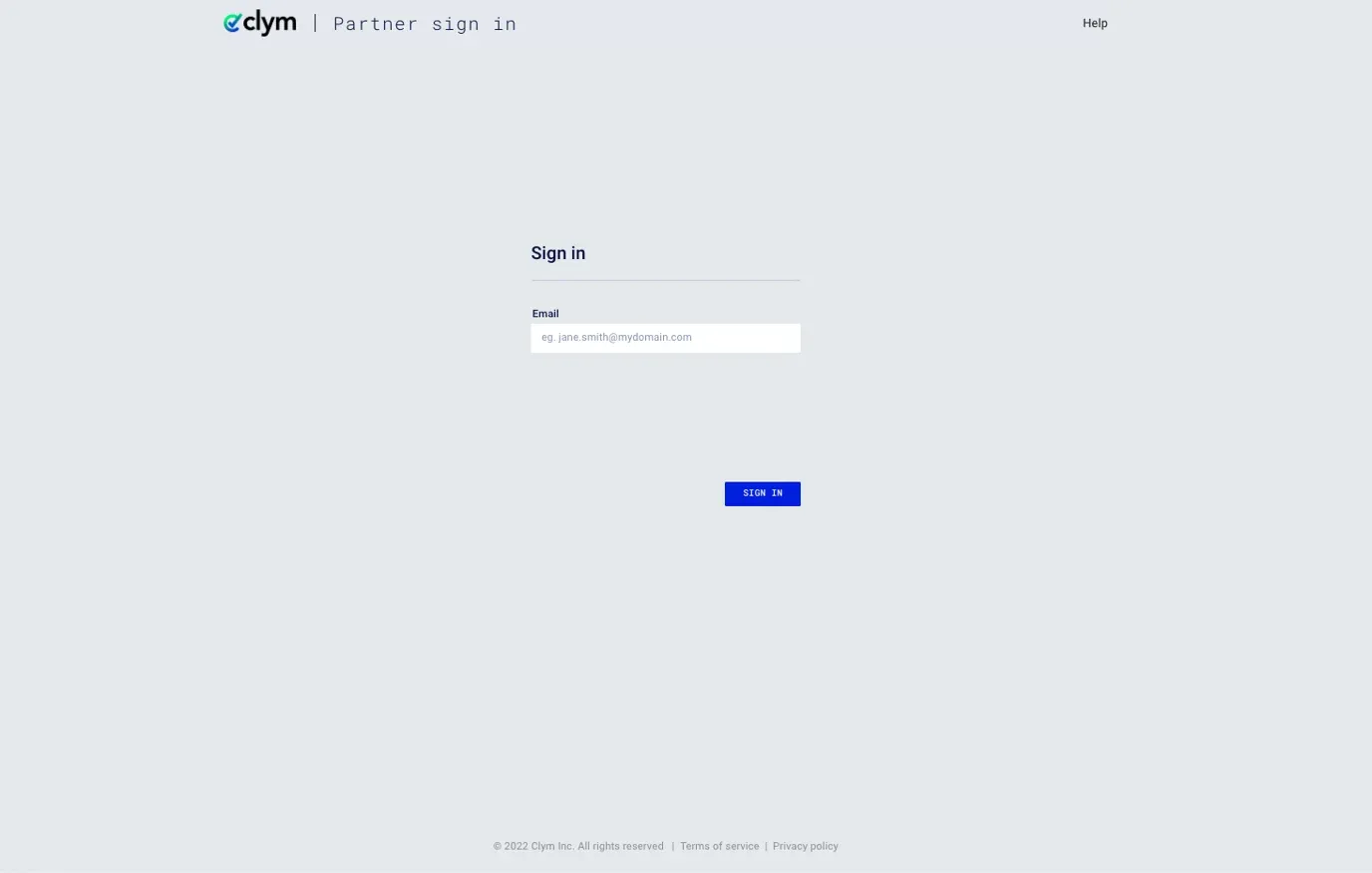
1. Sign in to the Partner Portal
You should have received a magic link in your initial onboarding email. Please click Sign in from the email to get started. Alternatively, navigate to the Partner Portal to sign in.
2. Go to the Access tab
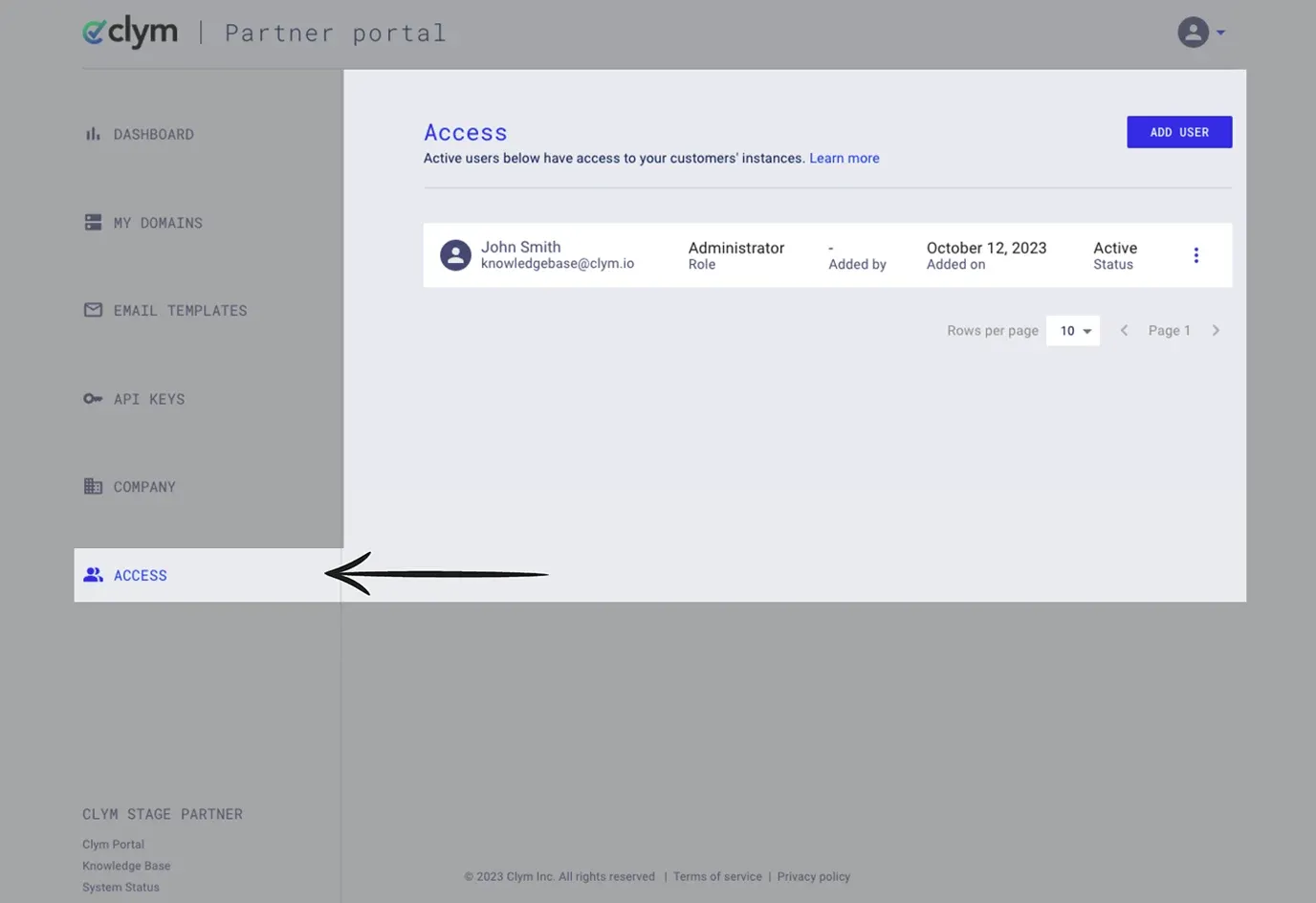
From the left-hand side, select Access.
3. Change the user role
Click the three dots next to the user whose role you would like to change.
In the pop-up window, select the Role that you would like to assign to the user. Click Save.
Review User Management to get an overview of the options you have to manage your organization's users.
If you encounter any challenges, please reach out to us at support@clym.io.