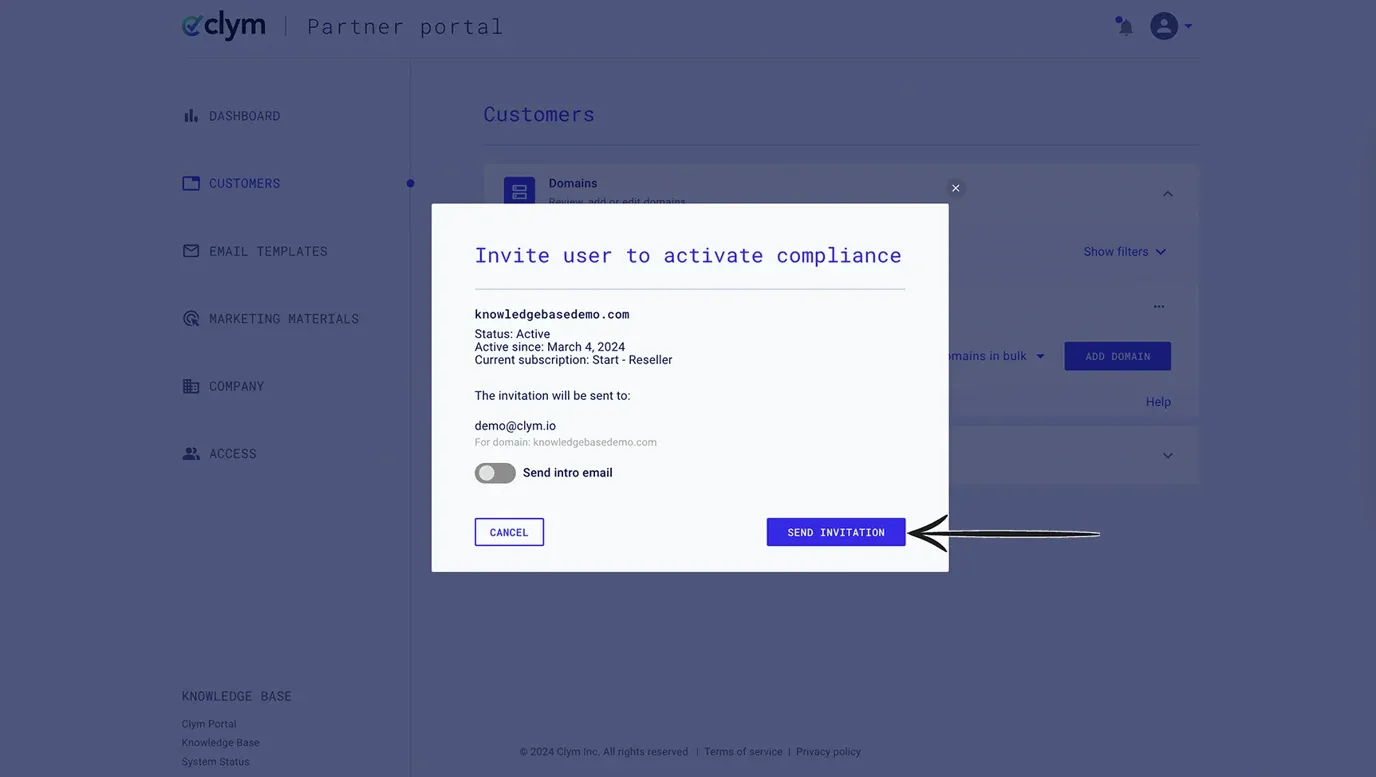
How to resend an email invite to a user
If a user in your account has not accepted the invitation, you will be able to see their status as Invited in the Partner Portal. You can easily re-invite these users at any time, and Clym will automatically send an email containing a magic link to sign in. Please note, this feature is currently only available to users who are still in the Invited status. Once a user has accepted their invite to your Partner Portal account, you cannot resend an invitation to join.
Resending an invite is an easy 3-step process:
- Sign in to the Partner Portal
- Go to the Access tab
- Resend the email invite to the user
1. Sign in to the Partner Portal
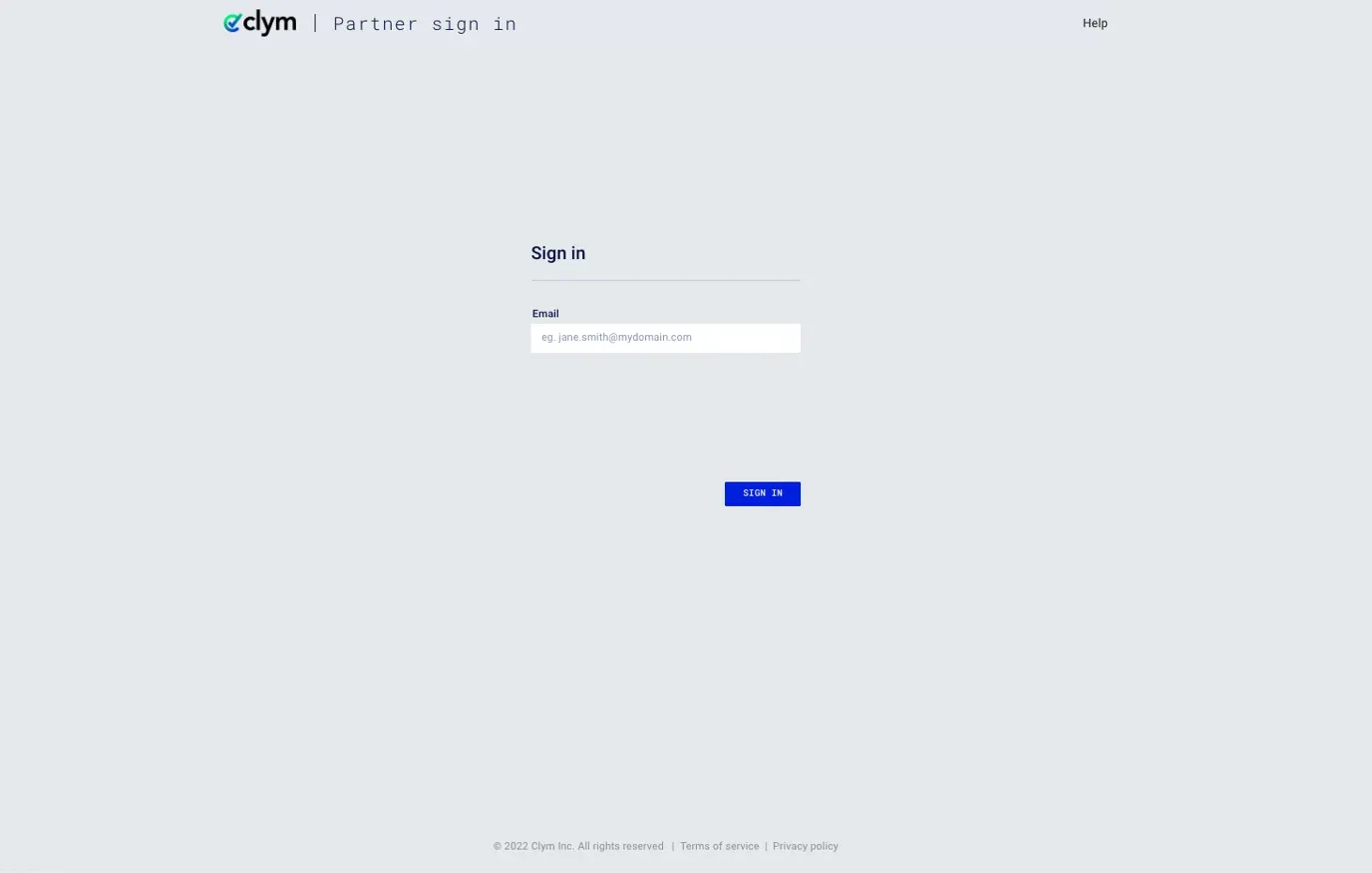
You should have received a magic link in your initial onboarding email. Please click Sign in from the email to get started. Alternatively, navigate to the Partner Portal to sign in.
2. Go to the Access tab
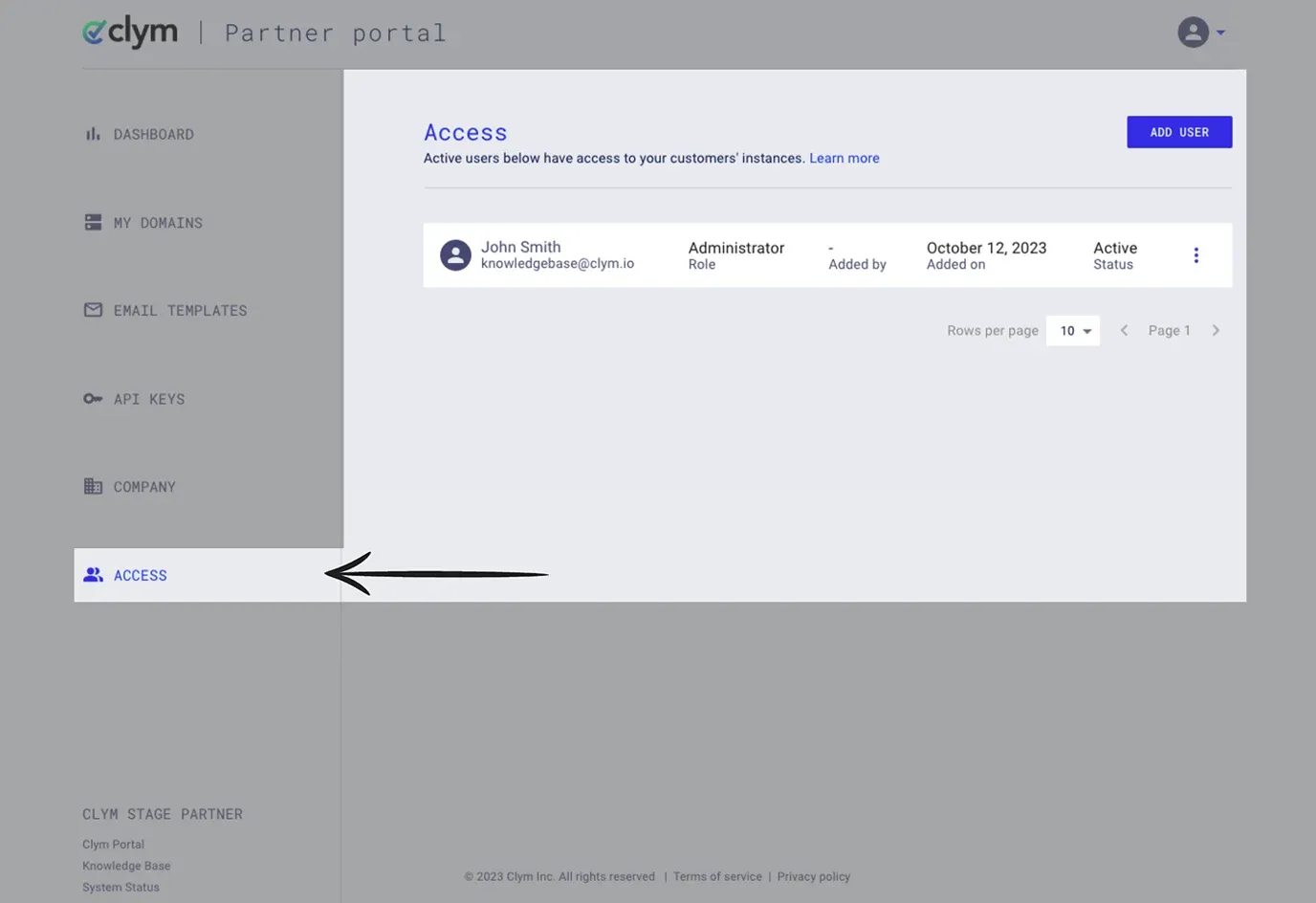
From the left-hand side, select Access.
3. Resend the email invite to the user
Click the three dots next to the user to whom you would like to resend the invitation. Click Resend invite.
To confirm that you would like to resend the invitation email, click Resend Invitation.
The invited user will receive an automated email containing the magic link to sign in and activate the account.
Review User Management to get an overview of the options you have to manage your organization's users.
If you encounter any challenges, please reach out to us at support@clym.io.