How to find a domain and review its information
If you have a large number of customer or merchant domains to manage in your Partner Portal account, you can use the search and filter capabilities on your My Domains page to find the data you need easily. Using the built-in search and filter features is an easy 3-step process:
- Sign in to the Partner Portal
- Access Customers
- Use search and apply filters
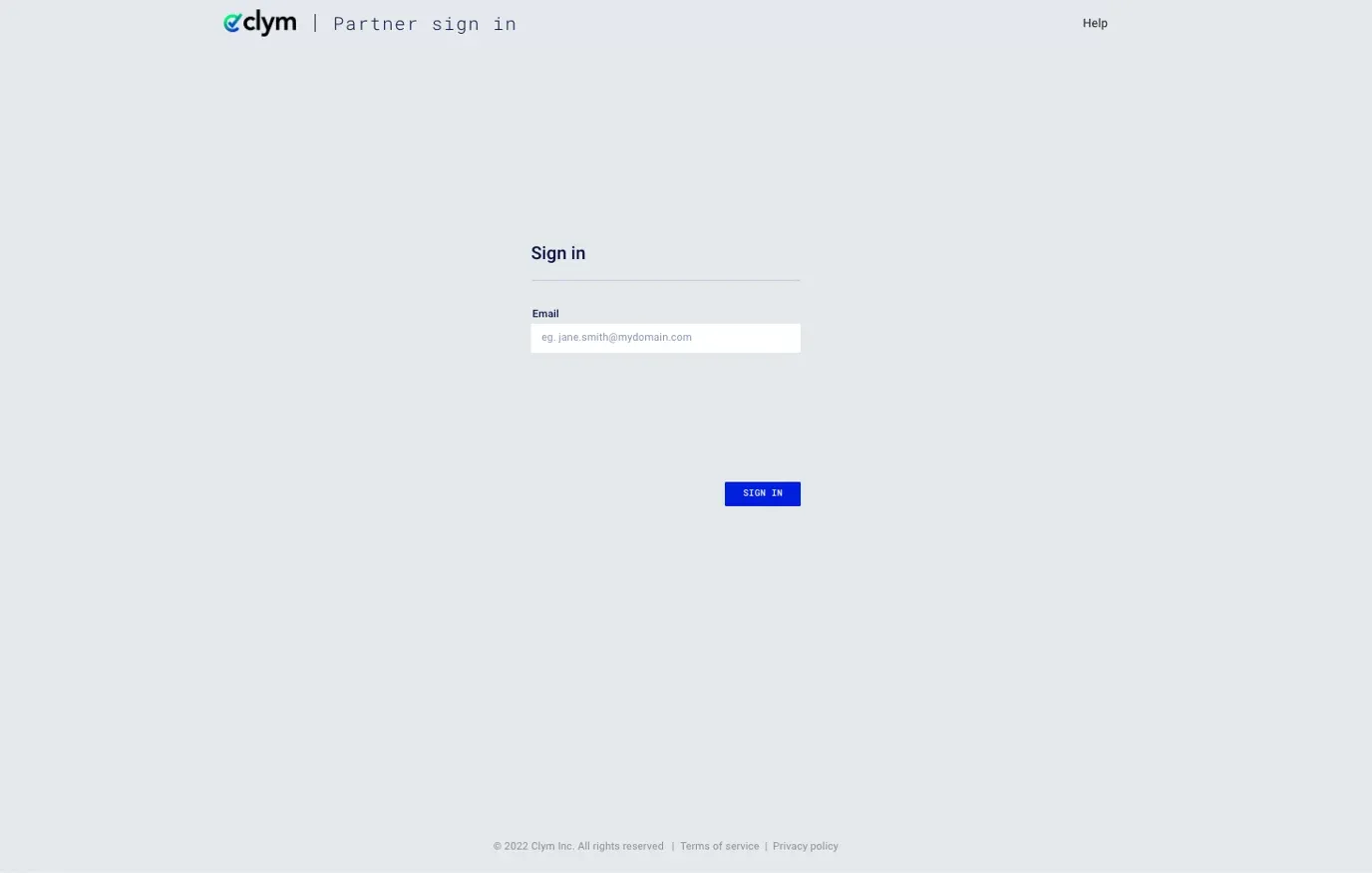
1. Sign in to the Partner Portal
You should have received a magic link in your initial onboarding email. Please click Sign in from the email to get started. Alternatively, navigate to the Partner Portal to sign in.
2. Access Customers
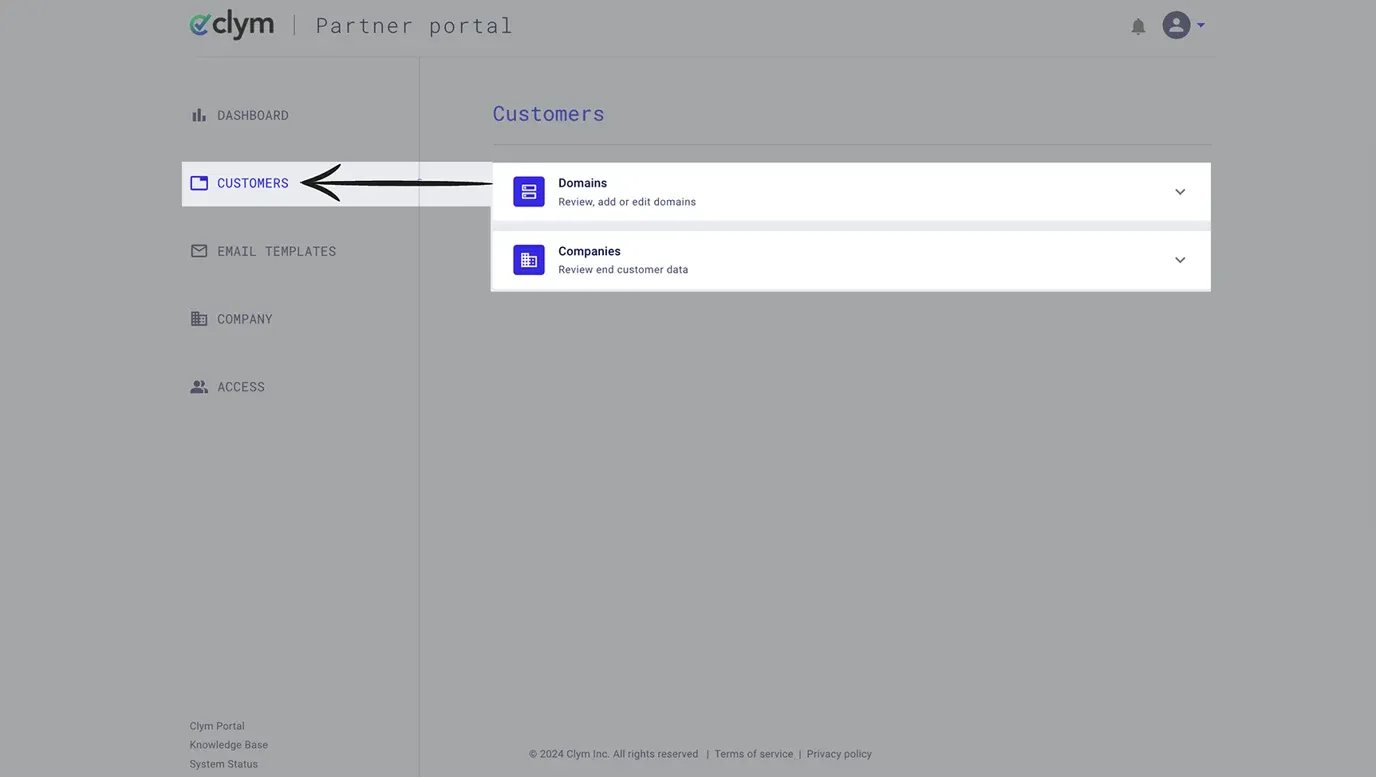
From the left-hand menu, select Customers.
3. Use search and apply filters
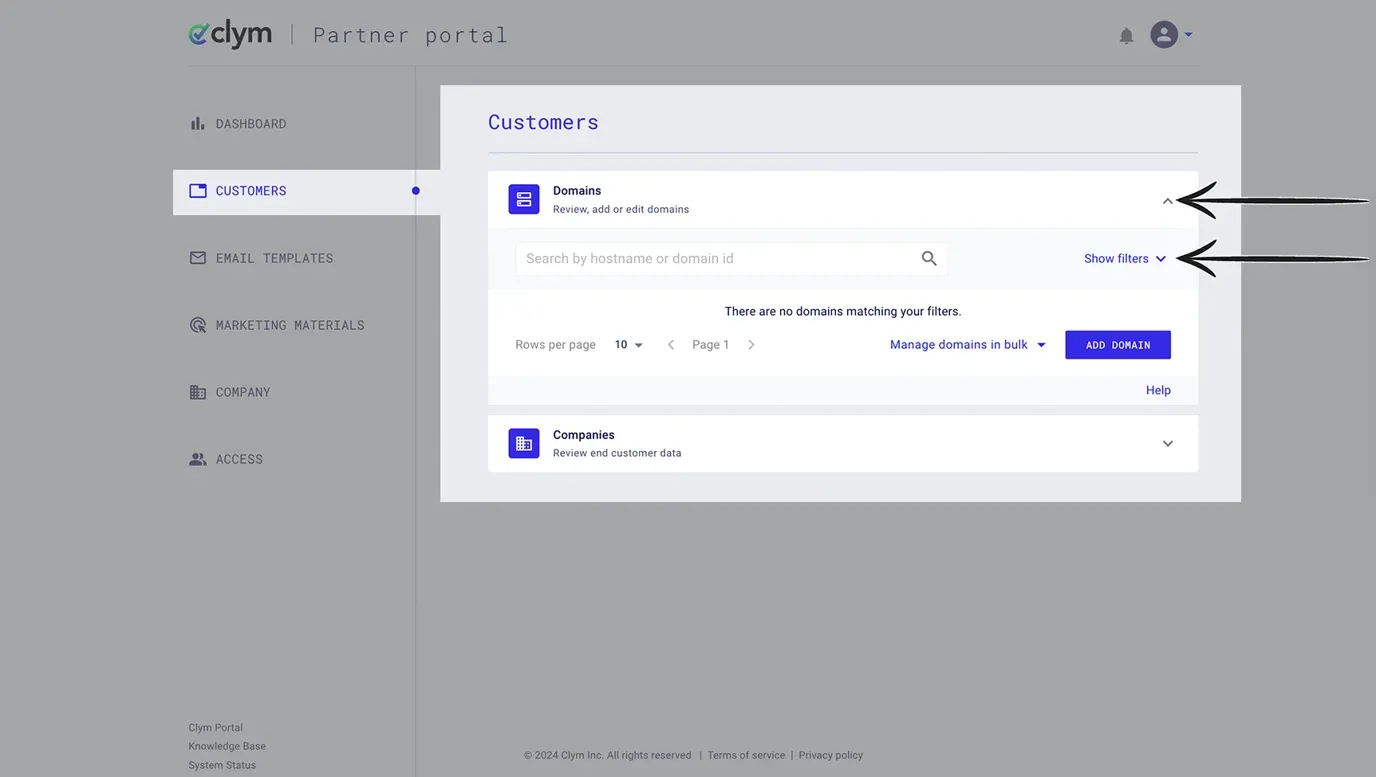
Click the drop-down arrow next to Domains to expand the section. Click Show filters.
Here you can filter by Status, Source, and Added between dates. You can use any combination of the fields to filter out your domain list as needed.
To access the account information for a domain, click the eye icon next to the domain and click Domain info.
From the pop-up window, view the Company Data, such as the Company Name, Email, Phone Number, Address, and Clym services. Click the X to return to your Customers page.
If you encounter any challenges, please reach out to support@clym.io.