How to deactivate a domain
As your customer base changes, or if one of your customers or merchants wishes to opt out of Clym services, you can quickly and easily make changes on the fly to keep your My Domains list up-to-date. Deactivating a domain is an easy 3-step process:
- Sign in to the Partner Portal
- Search for the domain to deactivate
- Deactivate the domain
1. Sign in to the Partner Portal
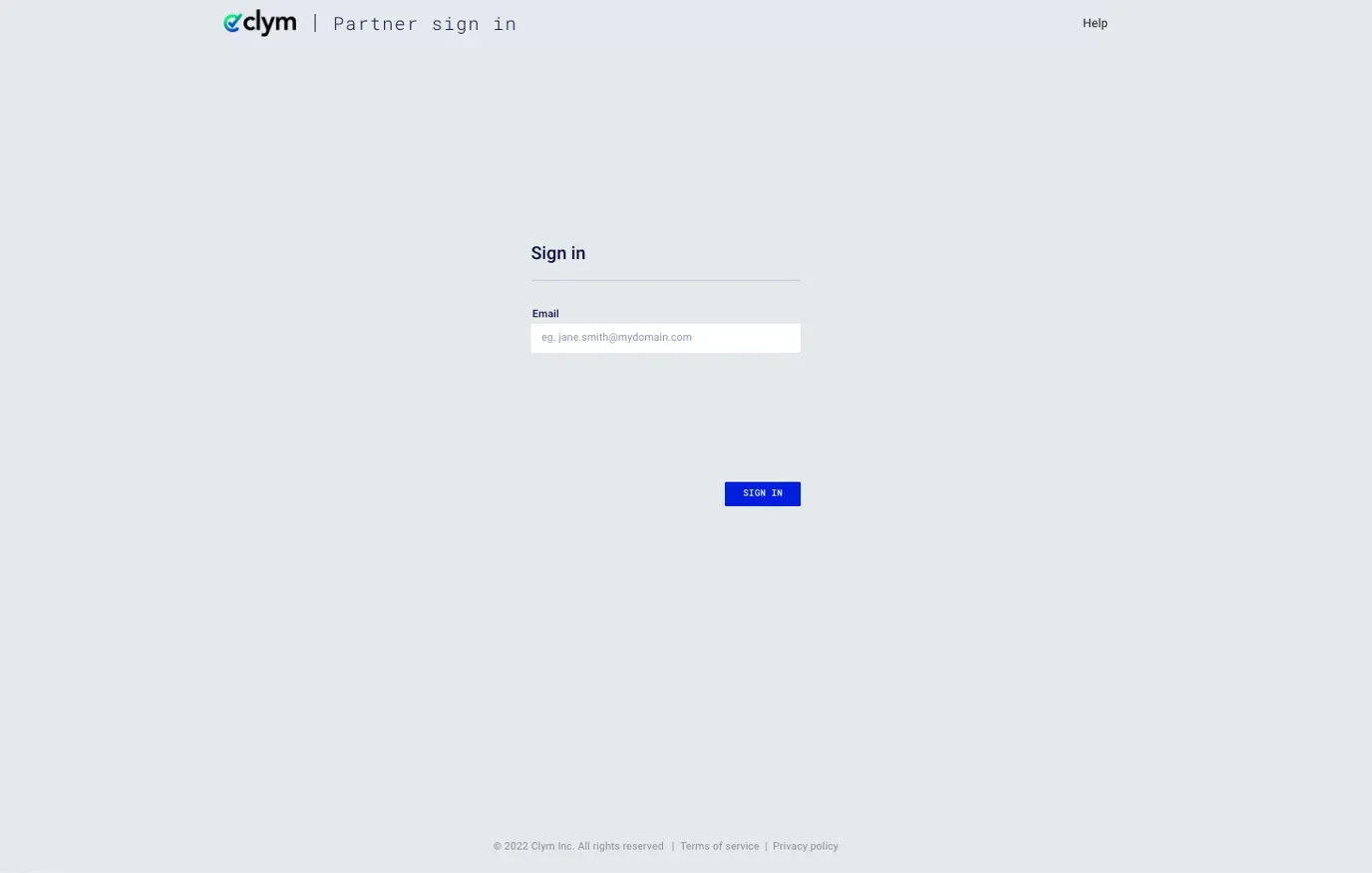
You should have received a magic link in your initial onboarding email. Please click Sign in from the email to get started. Alternatively, navigate to the Partner Portal to sign in.
2. Search for the domain to deactivate
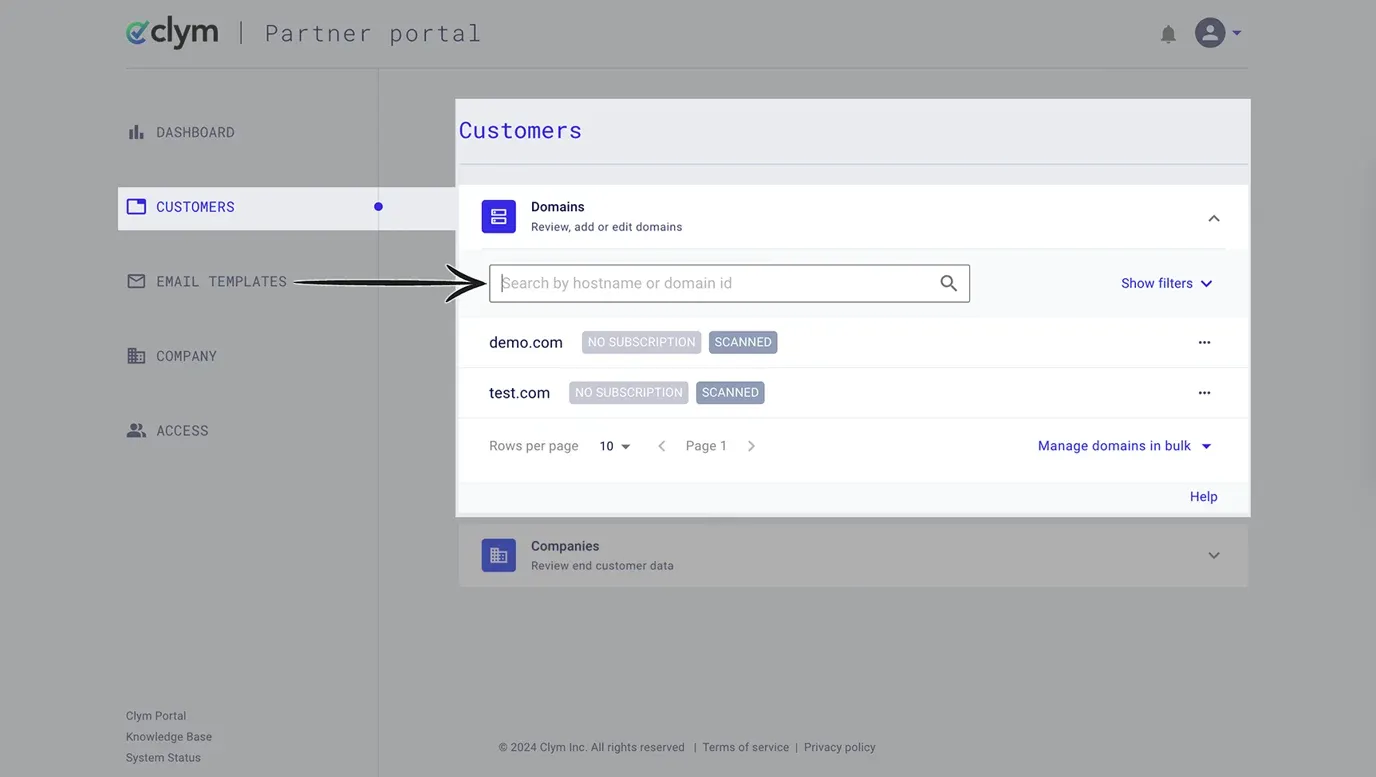
From the left-hand menu, select Customers.
Use the search bar to search for part or all of the domain.
3. Deactivate the domain
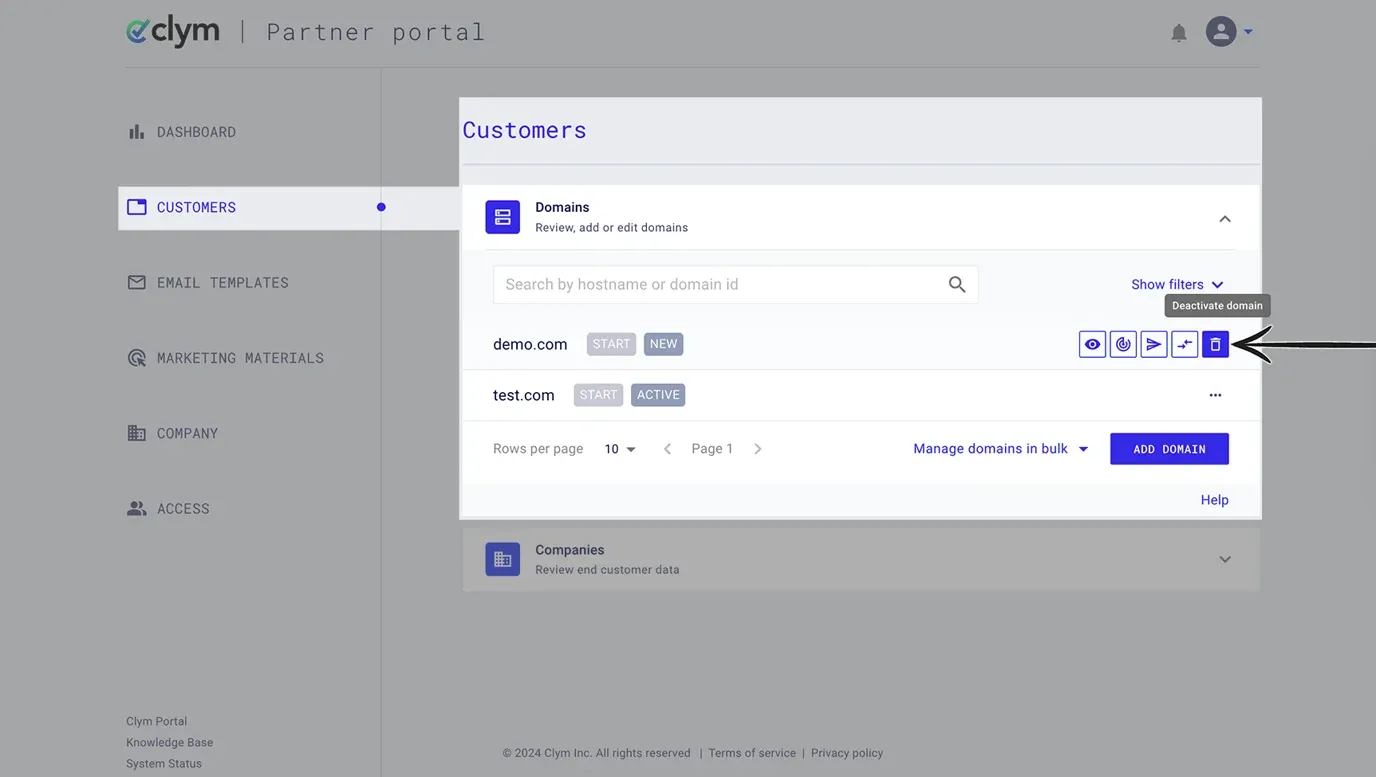
Hover over the three dots next to the domain you are looking for, and click the trash can icon to Deactivate domain.
In the pop-up window, click Deactivate to confirm that you would like to deactivate the domain.
If you encounter any challenges, please reach out to us at support@clym.io.
Domain management overview
There are several actions you can take to manage domains
We offer several partnership options with Clym, each offering different ways to onboard customer domains. Please note that some of these options may not be available in your account, depending on your account settings.
Add domains:
- Manually add a new domain
- Import a file with multiple domains
- Referral registration links
- Scan and registration widgets
- Create API keys
Manage domains:
- View domain information
- Deactivate a domain
- Deactivate multiple domains
- Reactivate a domain
- Resend invitation
Other actions:
If you encounter any challenges, please reach out to us at support@clym.io.