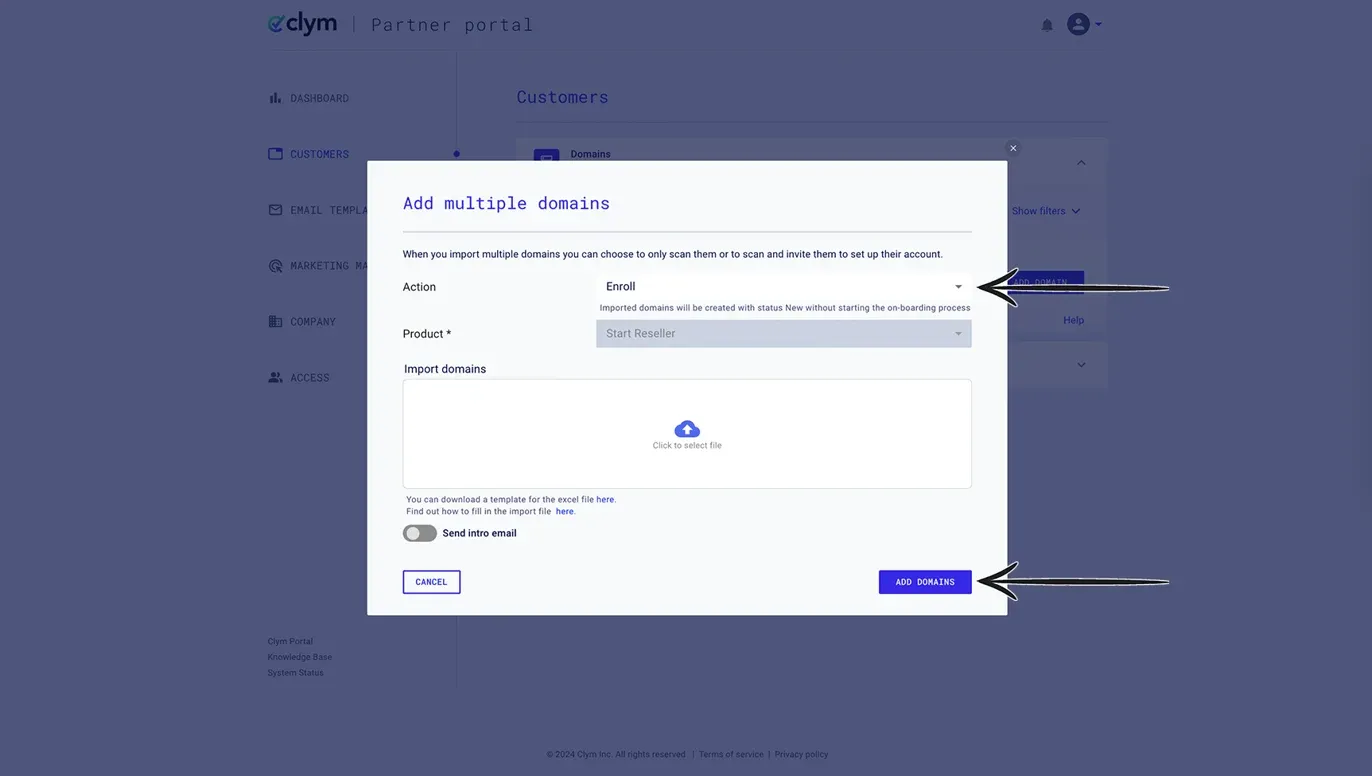
How to fix the error upload file (xlsx) and resubmit
If any of your customer or merchant data is not formatted correctly within the import template, you will receive an email outlining the exact errors, so that you can make any required changes. We want to make sure that your experience is as seamless as possible, so please don't hesitate to reach out to us if you need further assistance with this step. After reformatting your data to work with our system, re-uploading your file is an easy 3-step process:
- Check your email
- Review the errors
- Start the upload process again
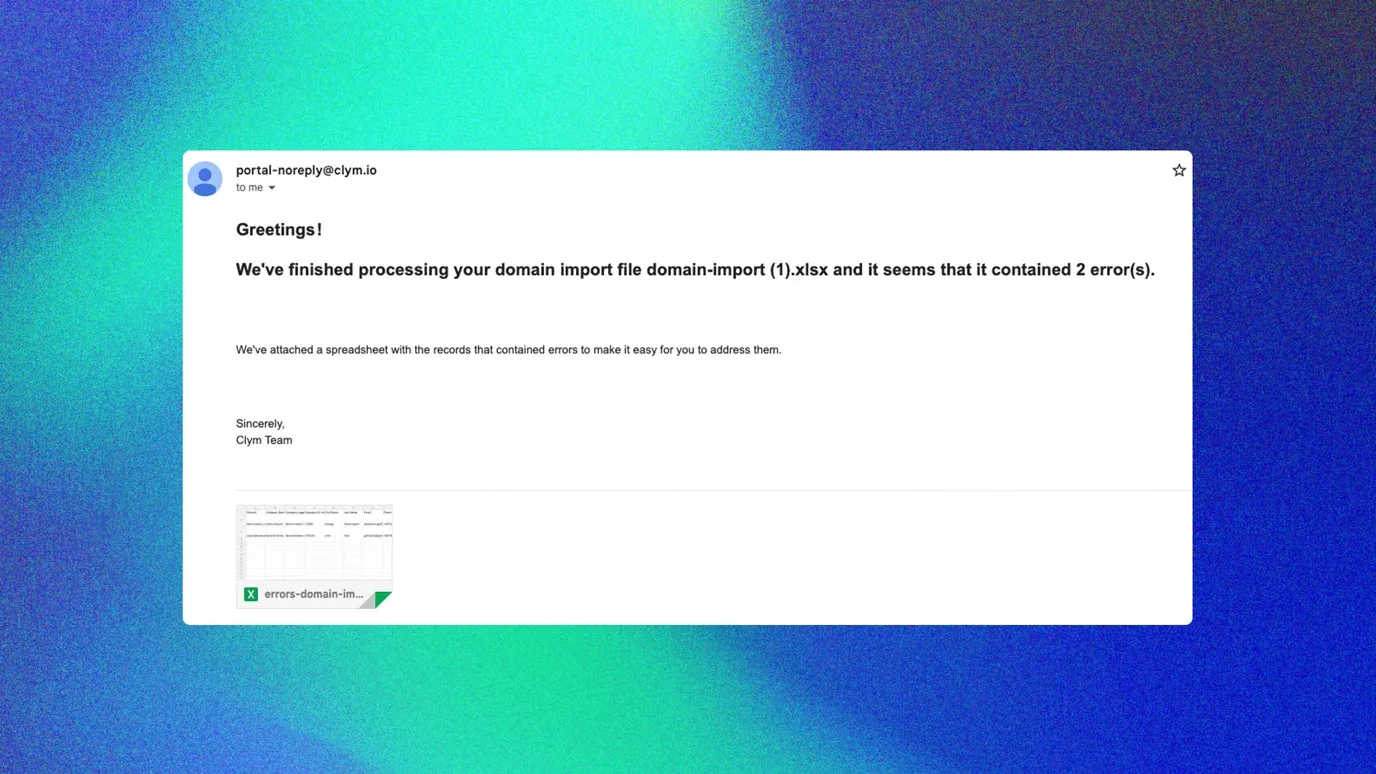
1. Check your email
You will receive an automated email from Clym containing a report of your import errors. Open the attached file to view the information.
2. Review the errors
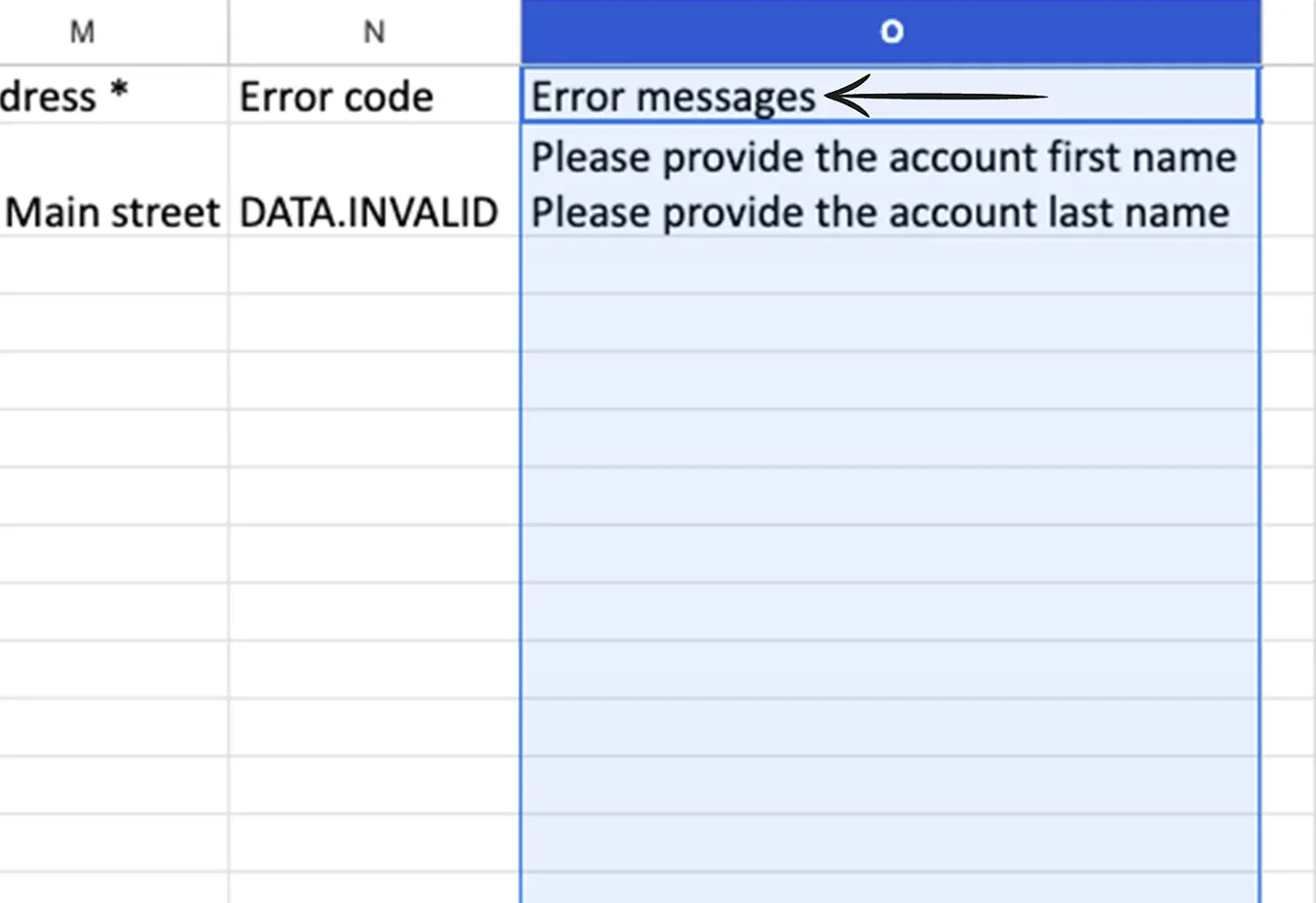
Please find columns N (Error code) and O (Error messages) to review the errors from your import.
For instructions on how to fill in the table in the correct format, please refer to this article.
3. Start the upload process again
Make the necessary corrections, save the file in .xlsx format, and reimport your template using the same Add Multiple Domains process.
The upload functionality is set to ignore the last two columns, so you only need to correct the wrong information in the table, save it as it is, and re-upload.
If you encounter any challenges, please reach out to support@clym.io.